 Loop
Loop Get free newsletter
Personal websites & portfolios
A clean multi-page site Claude can build in minutes — and host for free on Vercel or Netlify.
Everything you need to know to start building with Claude Code
- even if you've never coded before.
Claude Code is one of the most exciting tools I've used in years. It allows us to do more and build software faster than before - but it's not just for experienced developers. People with no coding background are using it to build working web apps, automate tasks, and ship real projects in a fraction of the time it would have taken before.
I've been using Claude Code daily in my professional work as a Senior AI Engineer, and I've written a separate guide that covers the strategies I use to get the best results. But that guide assumes you have already used the tool before. This one doesn't.
If you've never written a line of code and don't know what a terminal is, this guide is for you. I'll walk you through everything from installing Claude Code to building your first project, and share the tips that I've seen make the biggest difference for people who are just getting started.
That said, building software without understanding the code comes with real limitations and real risks. I'll cover those in detail and show how you can avoid the most common pitfalls.
But if you've always wanted to build something and didn't know where to start, the barrier to entry has never been lower.
Before we get started, it's worth explaining what Claude Code actually is - as it's different from the Claude chatbot you might have used before.
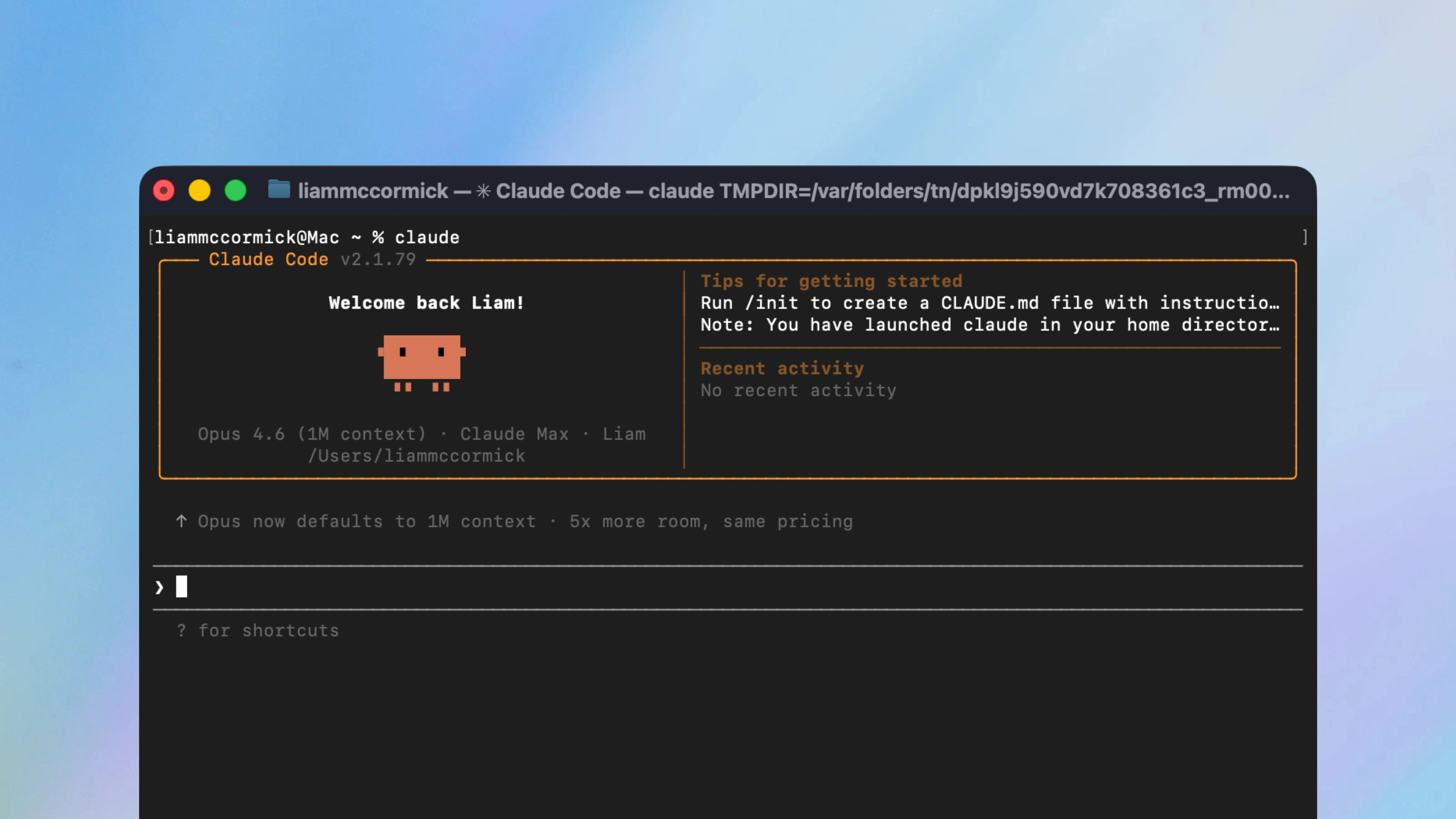
Claude Code is a tool from Anthropic that runs inside your terminal, which is a text-based interface on your computer. Unlike the Claude chatbot, which can only give you advice in a browser window, Claude Code works directly with the files on your computer.
It can create new files, edit existing ones, install software, and build entire projects from scratch. All you do is describe what you want, and Claude Code figures out how to make it happen.
This is what makes it so powerful for people, especially if you're not a developer and have never written code before. Instead of writing the code yourself, you simply describe what you want and Claude Code does it for you. And if you find that your software doesn't work the way you expected, just describe the problem and Claude will try to fix it.
This is where things get exciting. Claude Code can build a surprisingly wide range of things, and many of them are genuinely useful for people who don't code. Here are some of the most common things I've seen people build:
A clean multi-page site Claude can build in minutes — and host for free on Vercel or Netlify.
Budget trackers, habit trackers, recipe collections — anything that displays and organises information.
Small programs that handle repetitive computer tasks — renaming files, processing data, converting images.
Browser widgets that do one thing well — text highlighters, time-zone helpers, page utilities.
A quick page to test an idea — headline, features, sign-up form, all without spending on a designer.
Dashboards, forms, calculators — practical software your team can actually use.
A word of caution about scripts
Scripts that rename, move, or delete files can cause real damage if Claude misunderstands your prompt. You should always have a backup copy of your files, and review exactly what the script will do before it runs. Claude will also ask for your permission before it executes any commands, so you need to read those prompts carefully before hitting accept.
Before we dive in and get setup, it's worth explaining the different ways that you can interact with Claude Code. There are three options for you to choose from:
They're all running the same AI tool underneath, so the only difference is the interface. Your paid Anthropic plan covers all three and you can easily switch between them.
For this guide, I'm going to focus on the VS Code extension as I think it's the best option for most people, especially if you're new to all this. The skills carry across all three, so you can switch later without having to relearn anything.
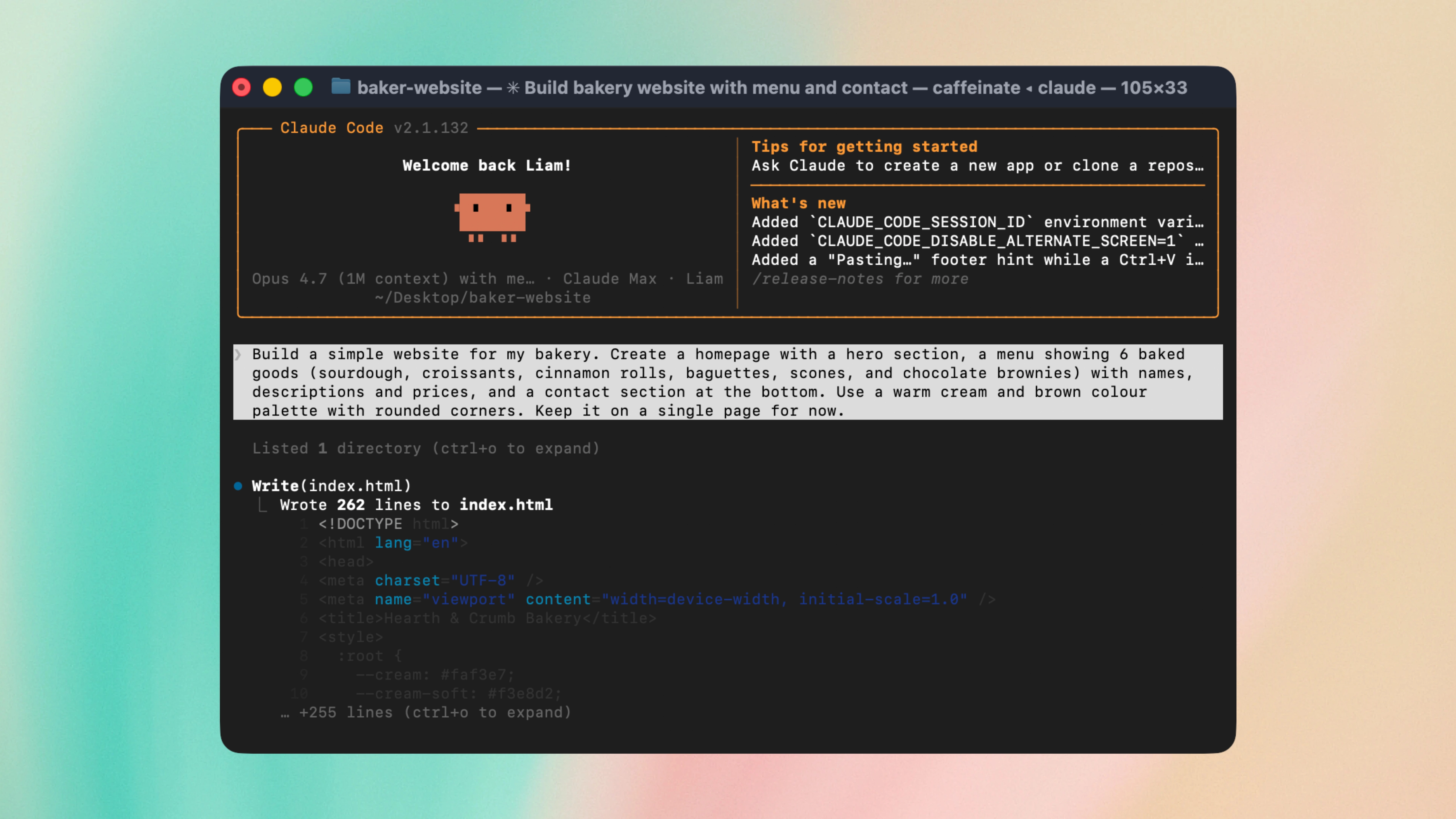
The terminal is the original way to use Claude Code, and it's still what a lot of developers prefer. There's no real UI - you just type your messages and Claude responds. It's very lightweight, fast, and runs anywhere. The downside is that the terminal can feel intimidating if you've never used one before, and you don't see your files unless you open them in another window.
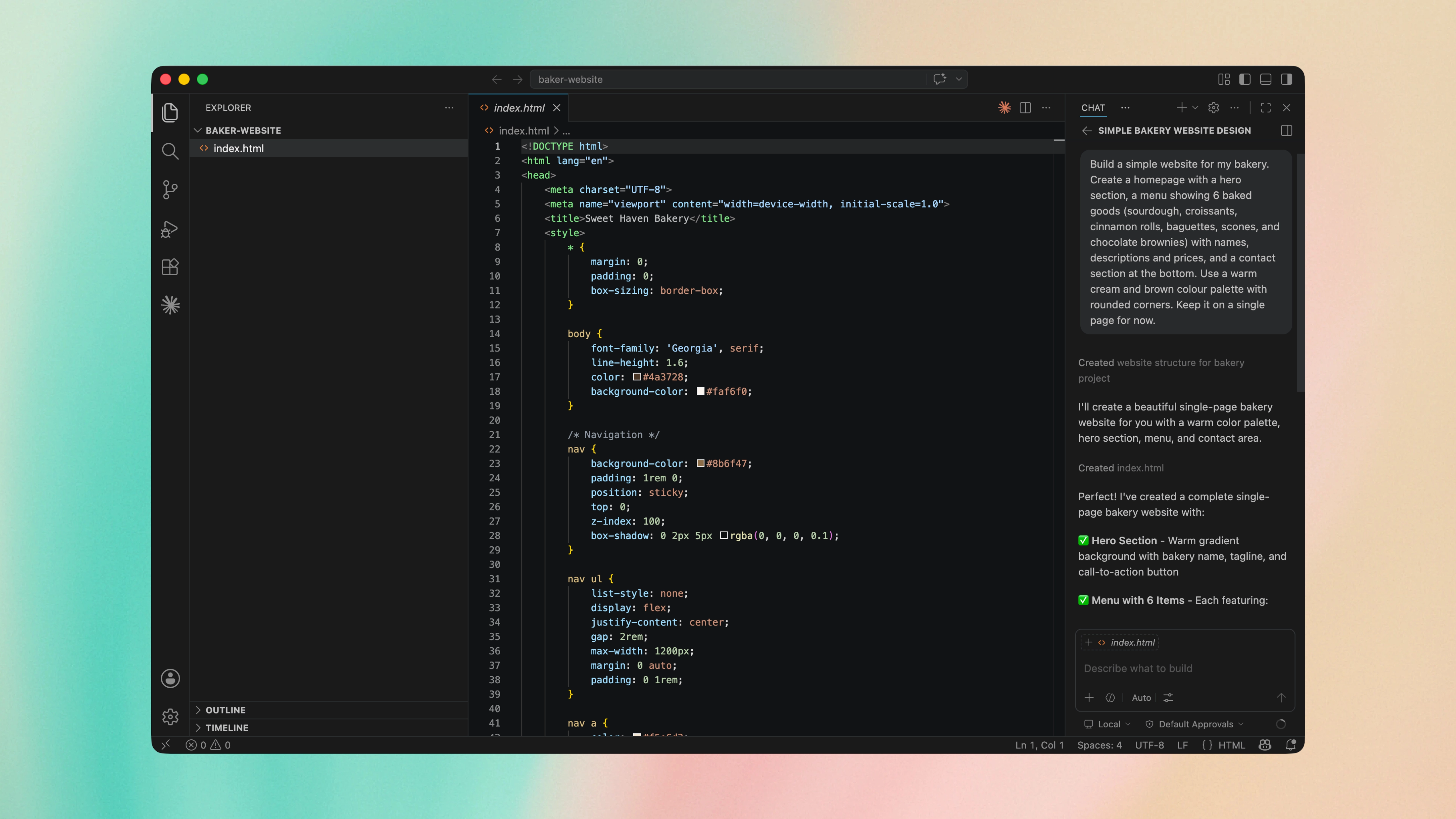
This is what I'd recommend for most people. VS Code is a free code editor from Microsoft, and the Claude Code extension runs the same AI you'd get in the terminal - but inside a much friendlier interface.
You can paste screenshots and see them in the chat window, scroll back through your conversation, and adjust settings without having to remember any commands. But the most important thing is that your files sit right next to the chat - so when Claude creates or edits something, you can see exactly what was changed.
It's really easy to get set up and I'll walk you through the entire process in the next section - but this view will really pay off the moment something goes wrong. I find it much easier to keep track of what Claude is doing when I can see the files alongside the conversation.
Anthropic also has a desktop app that you can download, where Claude will work either on files on your computer or in a connected GitHub repo through a cloud environment. The interface looks great, so it's probably the most welcoming option if the idea of code makes you nervous.
The trade-off is that everything happens at a higher level of abstraction. You'll see whatever Claude has just edited in the chat, but there's no easy way to step back and browse through all of your project's files in one place. Over time, that means you have less of a feel for the wider picture - what files exist, how they fit together, and what's changed since you started - and less of a sense of control over the project as a whole.
If you have no coding experience at all, I'd still pick the extension over the app for this reason. Seeing all of your files alongside the conversation makes it much easier to catch mistakes before they become real problems.
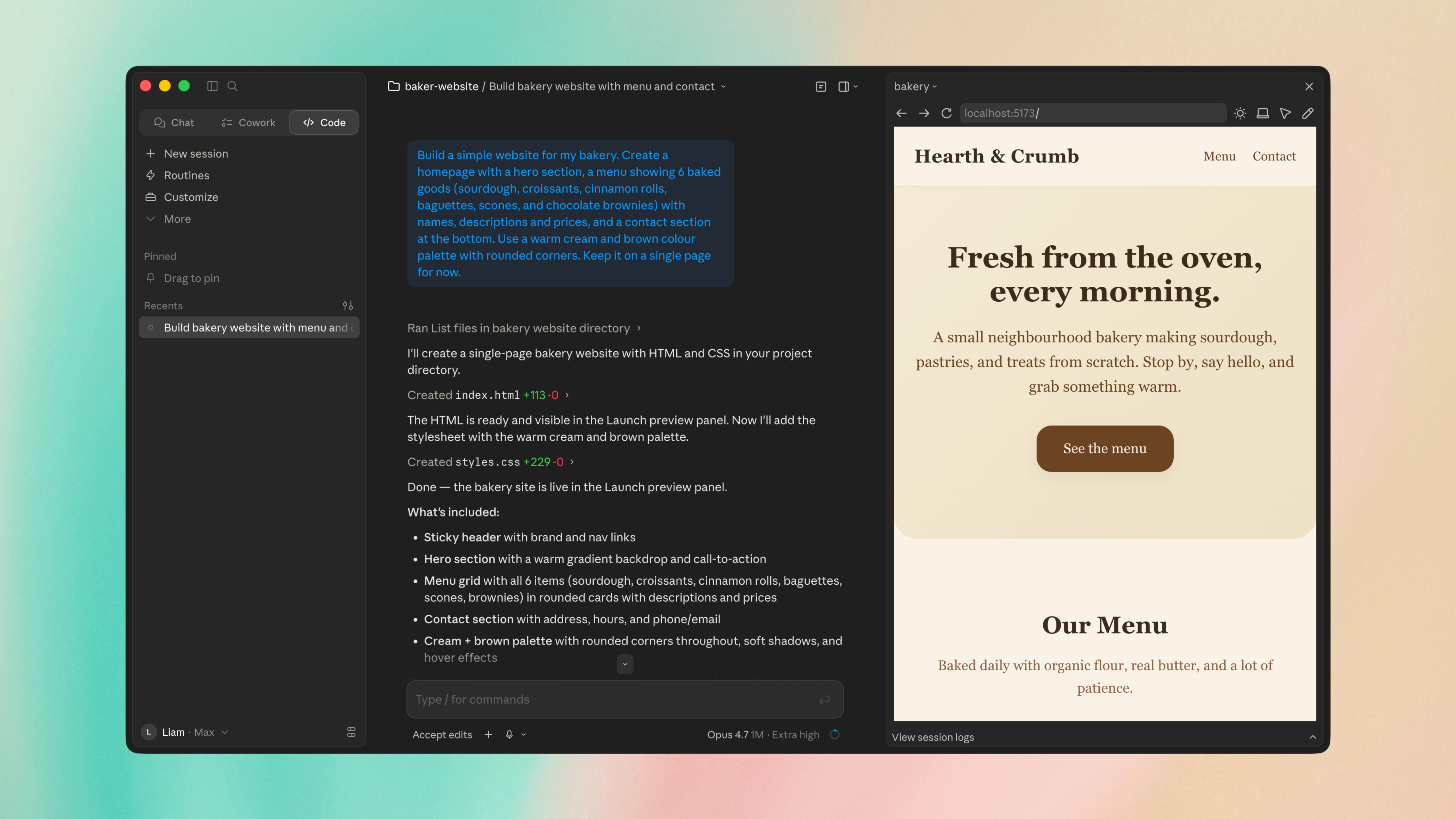
There's also a web version that mirrors the desktop app - if you've used either, the experience is essentially the same. Whichever interface you choose, the prompts and habits in this guide will work the same way.
This is the part that puts most people off, but it's incredibly straightforward and I'll walk you through the entire process.
Before you start, here's what you'll need:
That's it. You don't need to install anything else in advance - the installer handles everything for you.
The terminal is where you type commands and install software packages. It might feel unfamiliar if you've never used one before, but don't worry - you'll only need a handful of commands to get started.
Press Cmd + Space to open Spotlight, type "Terminal", and press Enter. You should see a window appear with a blinking cursor, which is where you'll type your commands.
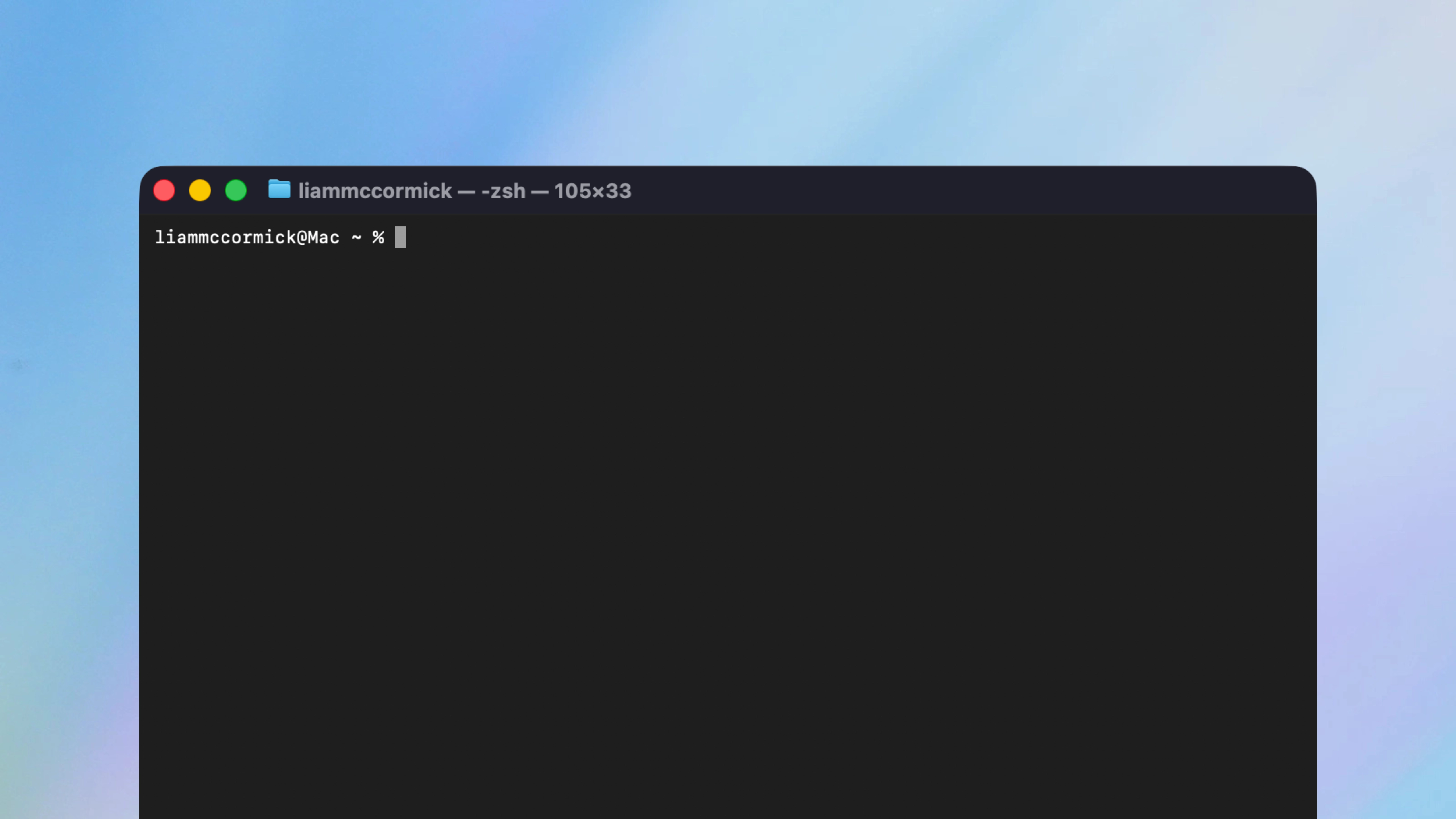
Before you install anything, let's create a dedicated folder for your first project. Claude Code works inside whatever folder you're in when you launch it, so it's good practice to set one up first. We'll put it on your Desktop so you can easily find it later.
cd ~/Desktop mkdir my-first-project cd my-first-project
The first command navigates to your Desktop, the second creates a new folder called "my-first-project", and the third moves you into that folder.
Paste the following command into your terminal and press Enter:
curl -fsSL https://claude.ai/install.sh | bash
You'll see some text scroll past as it downloads and installs - this is normal. Once it's finished, you should see a message confirming that the installation was successful.
Once the installation is complete, type claude and press Enter. You'll be asked to sign in with your Anthropic account - follow the on-screen instructions, and after a few seconds you should see Claude's interface appear in your terminal. It looks like a chat window with a text area at the bottom where you can type your messages. If you see that, you're ready to go.
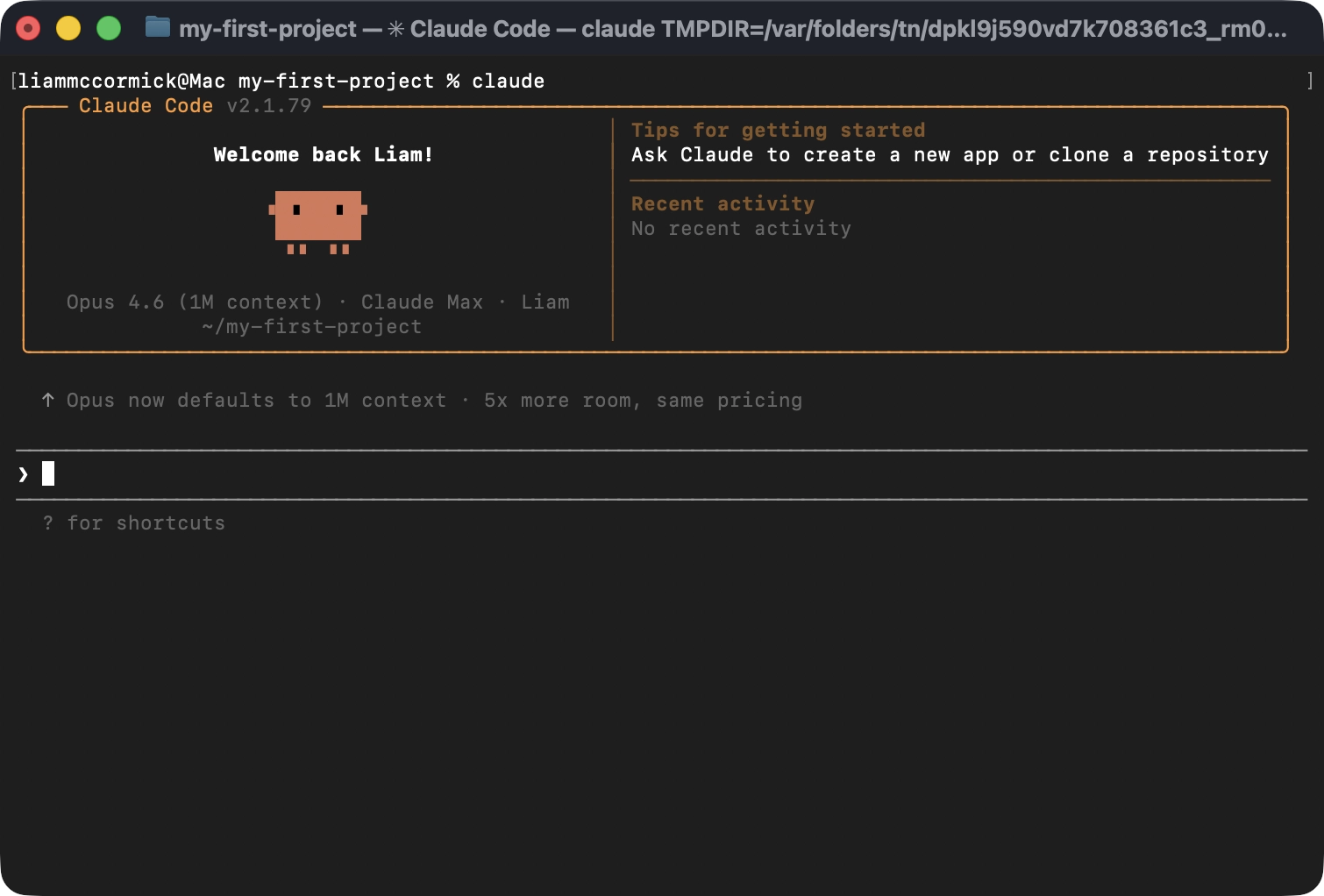
If you run into any issues during this process, don't panic. Simply open your browser and describe the error to Claude's chatbot, which will help you troubleshoot the issue. Most installation problems are pretty straightforward and can be fixed quickly.
As you start building, Claude will create real files on your computer - and you'll want a way to see them. You can always open your project folder in Finder (Mac) or File Explorer (Windows) to browse what's been created, and that works fine for simple projects.
But if you want a better view, I'd recommend installing VS Code - it's a free code editor from Microsoft. It gives you a sidebar where you can see all of your project files, open them with a click, and see the code that Claude has written. You don't need to understand the code, but being able to see the file structure helps you keep track of what's been built.
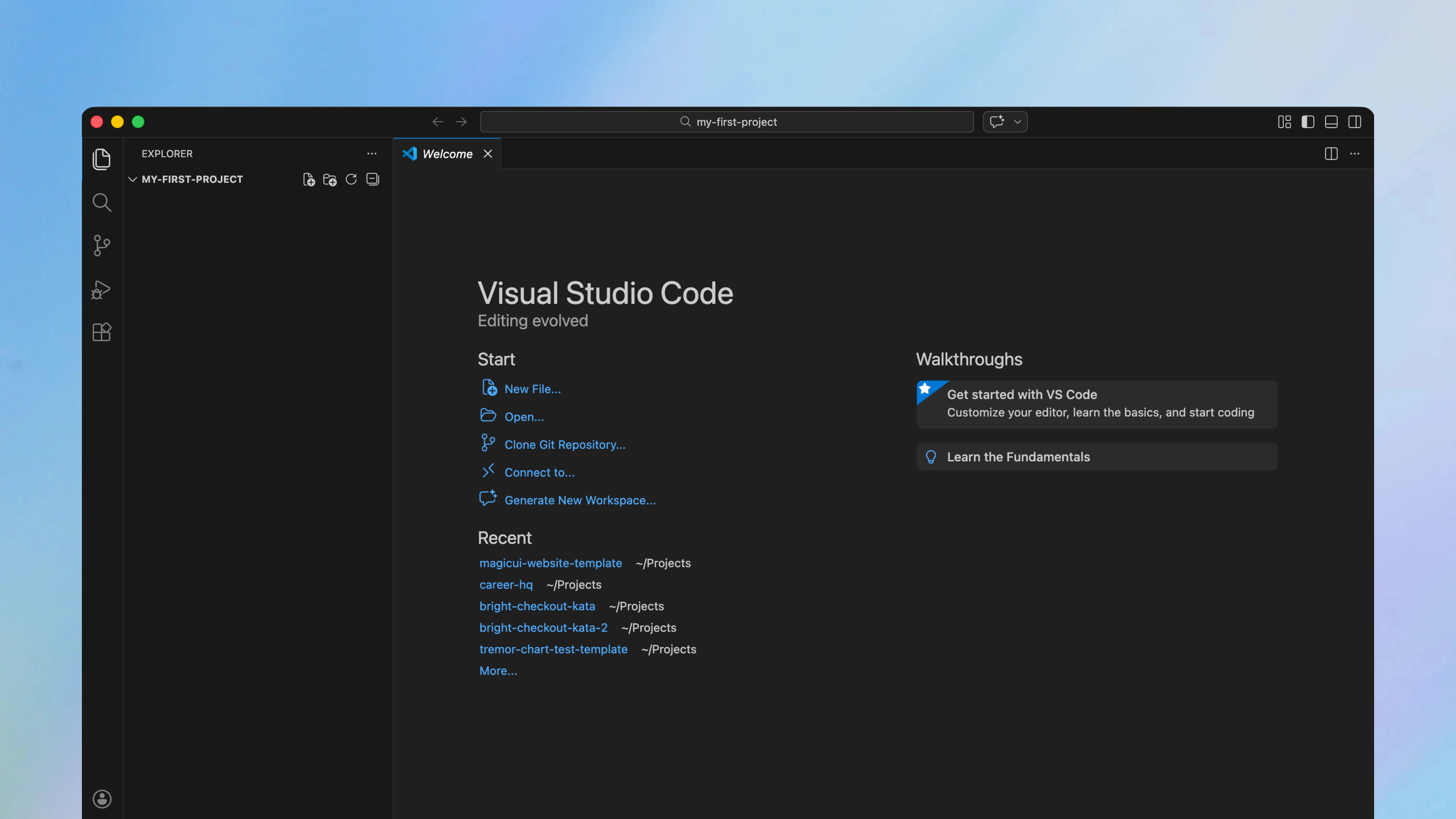
VS Code also has a Claude Code extension, which lets you run the tool directly inside the editor instead of the terminal. It gives you a friendly chat interface that a lot of people prefer - and you can see your files, your code, and your conversation with Claude all in one place.
To set it up, open the Extensions tab in VS Code (the icon with four squares on the left sidebar), search for "Claude Code", and click Install.
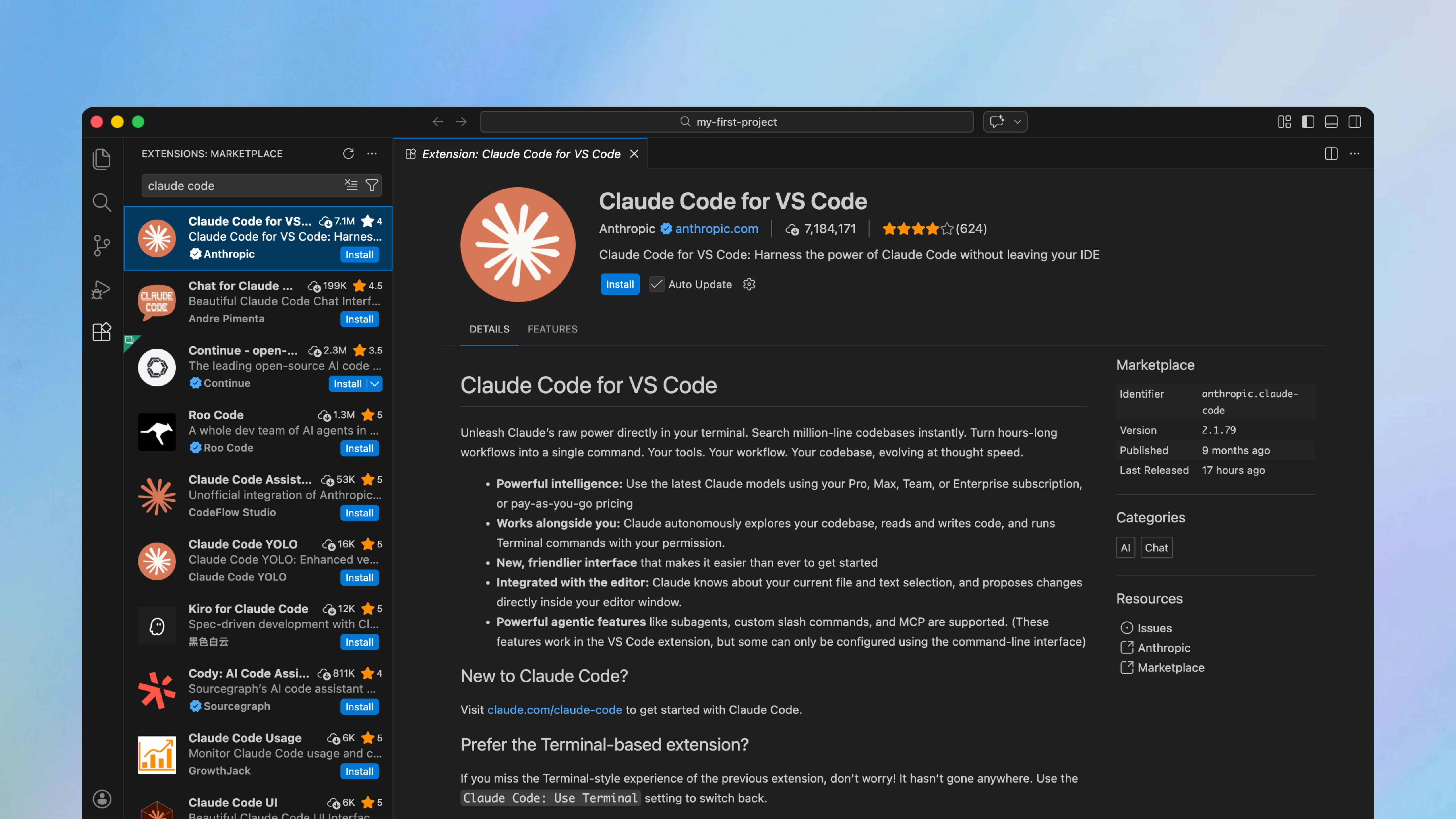
Once it's installed, you'll see an orange Claude icon in the app - which can be found at the top right of the screen. Simply click it to open the chat panel and you're ready to go. It's the exact same version of Claude Code running underneath, so everything you learn in this guide applies to both the VS Code Plugin and the Terminal interface.
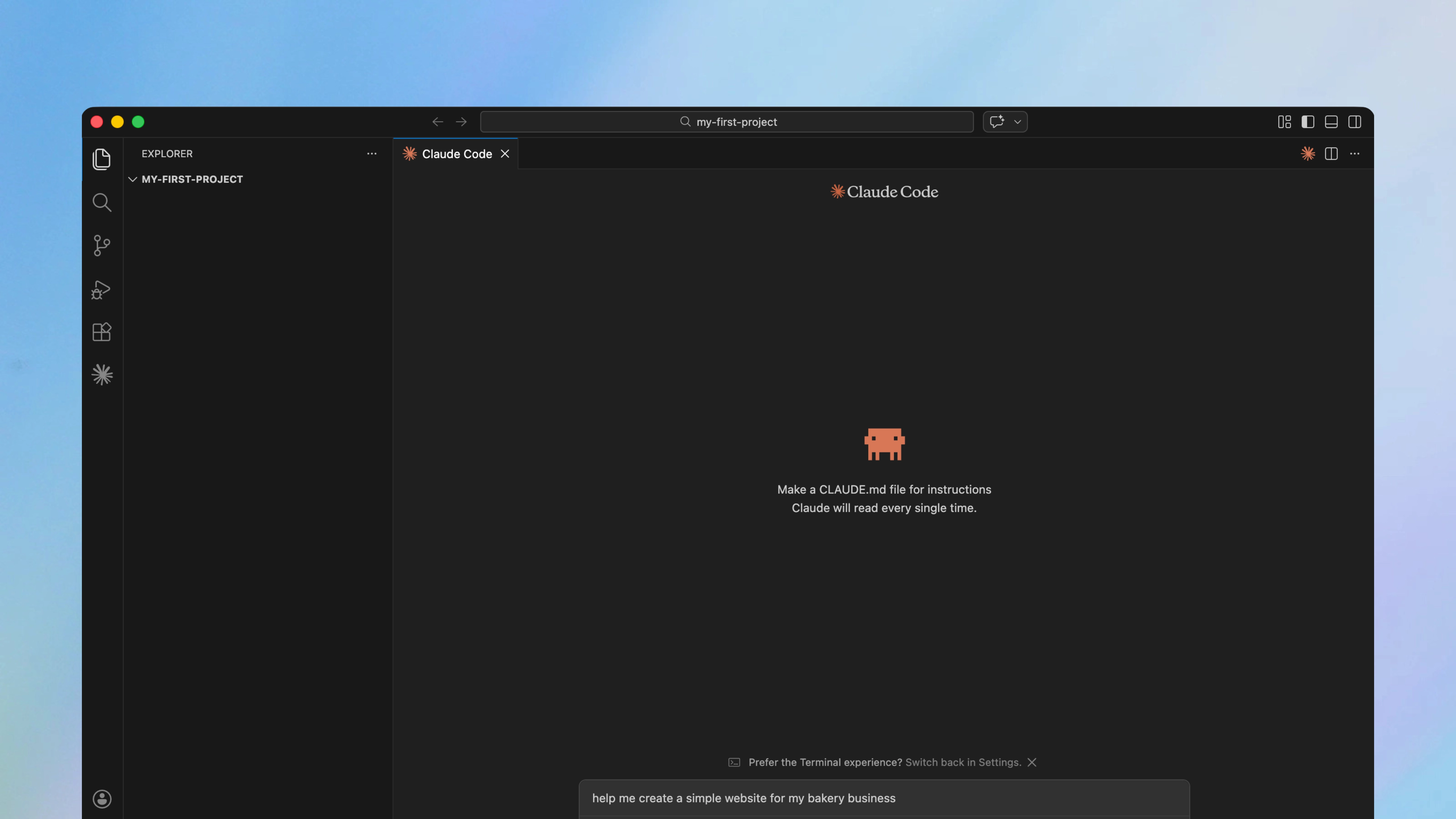
Now that you've got Claude Code installed and a project folder ready, let's build something. The best way to learn is by doing, so we're going to start with a small project and work through it together.
Make sure you're inside your project folder in the terminal, then type claude and press Enter to start Claude Code.
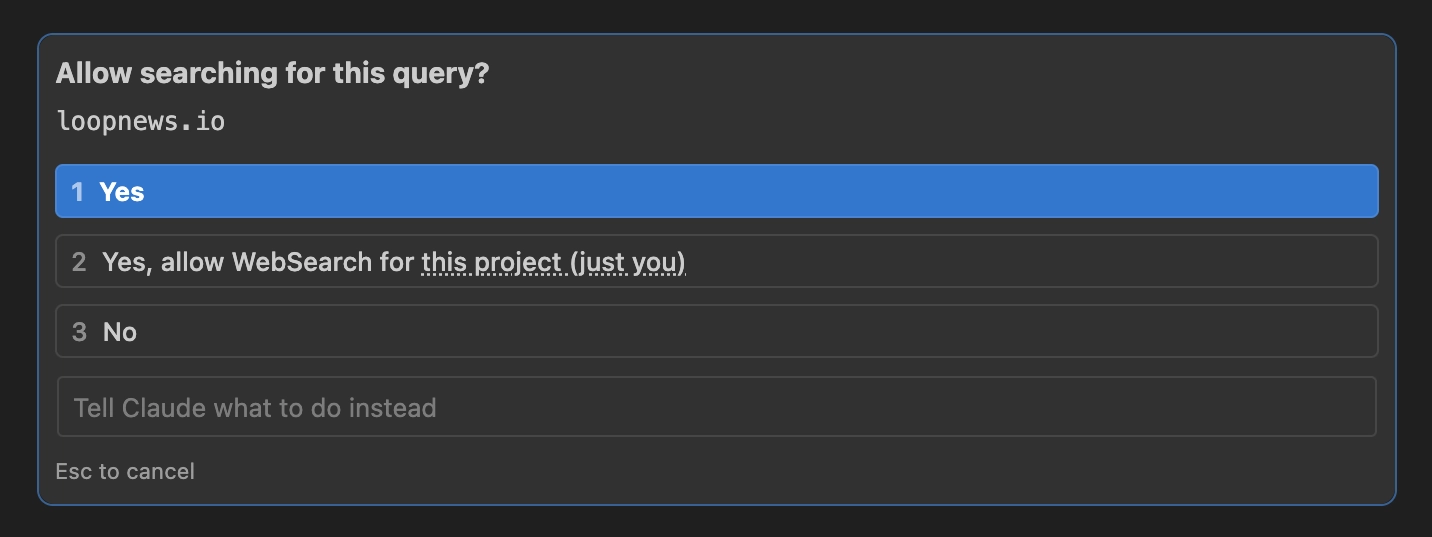
When Claude Code starts working on a task, it will ask for your permission before it creates any files or runs commands on your computer. You'll see a prompt asking you to "Allow" or "Deny" each action. This is a good safety feature, as it means that Claude can't make changes without your approval.
For now, you can safely allow Claude to create and edit files. Just read what it's asking to do before you hit accept. If you're ever unsure, you can deny the action and ask Claude to explain what it's trying to do.
Let's start with something simple and create a personal website. Here's what you might type:
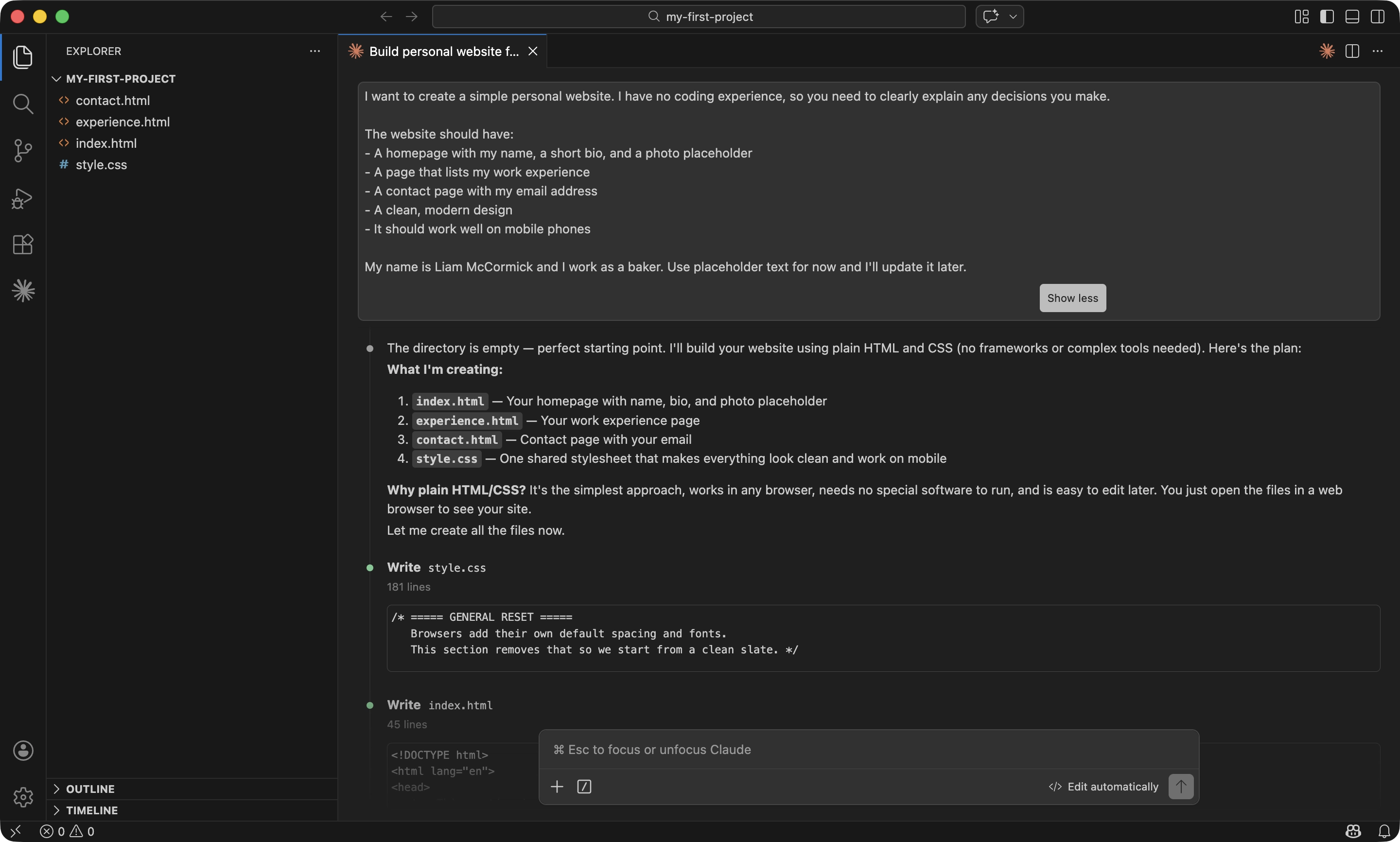
I want to create a simple personal website. I have no coding experience, so you need to clearly explain any decisions you make. The website should have: - A homepage with my name, a short bio, and a photo placeholder - A page that lists my work experience - A contact page with my email address - A clean, modern design - It should work well on mobile phones My name is [your name] and I work as [your job]. Use placeholder text for now and I'll update it later.
After you send this, Claude will start creating files on your computer. You'll see it working in real time - creating HTML files, writing CSS for the design, and setting up the structure of your website. It might ask you some questions along the way, like what colours you prefer or how you'd like the navigation to work.
Once it's done, you'll want to see the result. The easiest way is to ask Claude directly:
Open the website in my browser
You should now see your website appear in your browser - with your name, a bio section, and the pages you asked for. It won't be perfect, but it'll be a real website that you built in a few minutes.
Now that you've got a decent starting point, you can change the website's design and improve it over time. Try changing the colours, swapping the layout, or adding a new section - just tell Claude what you'd like to do and it'll handle the rest.
Whether you're building from scratch or refining what's already there, the process is always the same:
It's a conversation, not a one-shot command. You can keep going back and forth, and Claude will build on what it's already created - so you don't need to get everything right in your first message.
When you're done for the day, type /exit to leave Claude Code. Your files are saved on your computer, so closing Claude Code won't delete anything. To pick up where you left off, just open the terminal, navigate back to your project folder cd ~/Desktop/my-first-project and type claude again.

Loop Newsletter
Read by executives at:

This is where you'll see the biggest improvement in your results, as the quality of what Claude builds depends on how well you describe what you need. And the good news is that you don't have to use any technical jargon, you just need to be specific.
The number one mistake people make is being too vague. Here's the same idea written two ways:
Build me a website.
Build me a website with a dark background, my name in large white text at the top, and three sections below for my work experience, skills, and contact details.
The first one gives Claude almost nothing to work with - it'll make dozens of decisions you might disagree with. The second one paints a clear picture, and you'll get something close to what you actually wanted on the first try.
Here are four techniques that consistently make prompts more specific:
Skip the technical terms. Describe the layout, colours, and components visually - that gives Claude more than enough to work with.
Easy to overlook, but it saves time. If you don't want animations, bright colours, or a blog section, say so up front - otherwise Claude will add them and you'll need to undo it.
Paste a design mockup, another website, or even a rough sketch directly into Claude Code. It can analyse images really well, which removes a lot of ambiguity.
If you've seen a website or app that does something similar to what you want, tell Claude about it - just describe what you liked.
Here's what a prompt looks like when all four techniques come together:
I want the homepage to have a large hero banner, similar to how Notion displays its hero. My name and tagline should sit on top of the image in white text. Below the hero, I want three cards in a row - one for "About", one for "Projects", one for "Contact". Each card should have an icon at the top, a short description, and a button that opens that page. I've attached a screenshot of a design I like. Use it as a reference for the layout, colours, and overall feel. Don't add any animations or fancy transitions. Don't use bright colours. Don't add a blog section. Keep everything on a single page for now.
The more specific you are from the start, the less time you'll spend going back-and-forth trying to correct things afterwards. It's worth spending an extra minute on your prompt to save yourself ten minutes of revisions.
You don't need to understand every line of code that Claude writes - but you should understand the general decisions that it's making. Claude can choose an approach that seems reasonable, but isn't what you had in mind - so you need to be able to spot this before it goes too far.
The single best habit you can build as a beginner is to use plan mode. Instead of jumping straight into writing code, plan mode forces Claude to think through its approach and present it to you before it makes any changes.
You can switch to plan mode by pressing Shift+Tab - it works the same way whether you're in the terminal or the VS Code extension. Alternatively, you can click on the Mode button in the bottom right of the chat window and choose Plan mode.
This means you get to review the plan and say "actually, I'd prefer it to work like this" before Claude has written hundreds of lines of code that you'll need to undo. It's really valuable when you're building something complex, and I'd recommend using it for anything beyond simple changes.
Of course, it adds a bit of time upfront - but it means you catch misunderstandings early, rather than discovering them after Claude has already built the wrong thing.
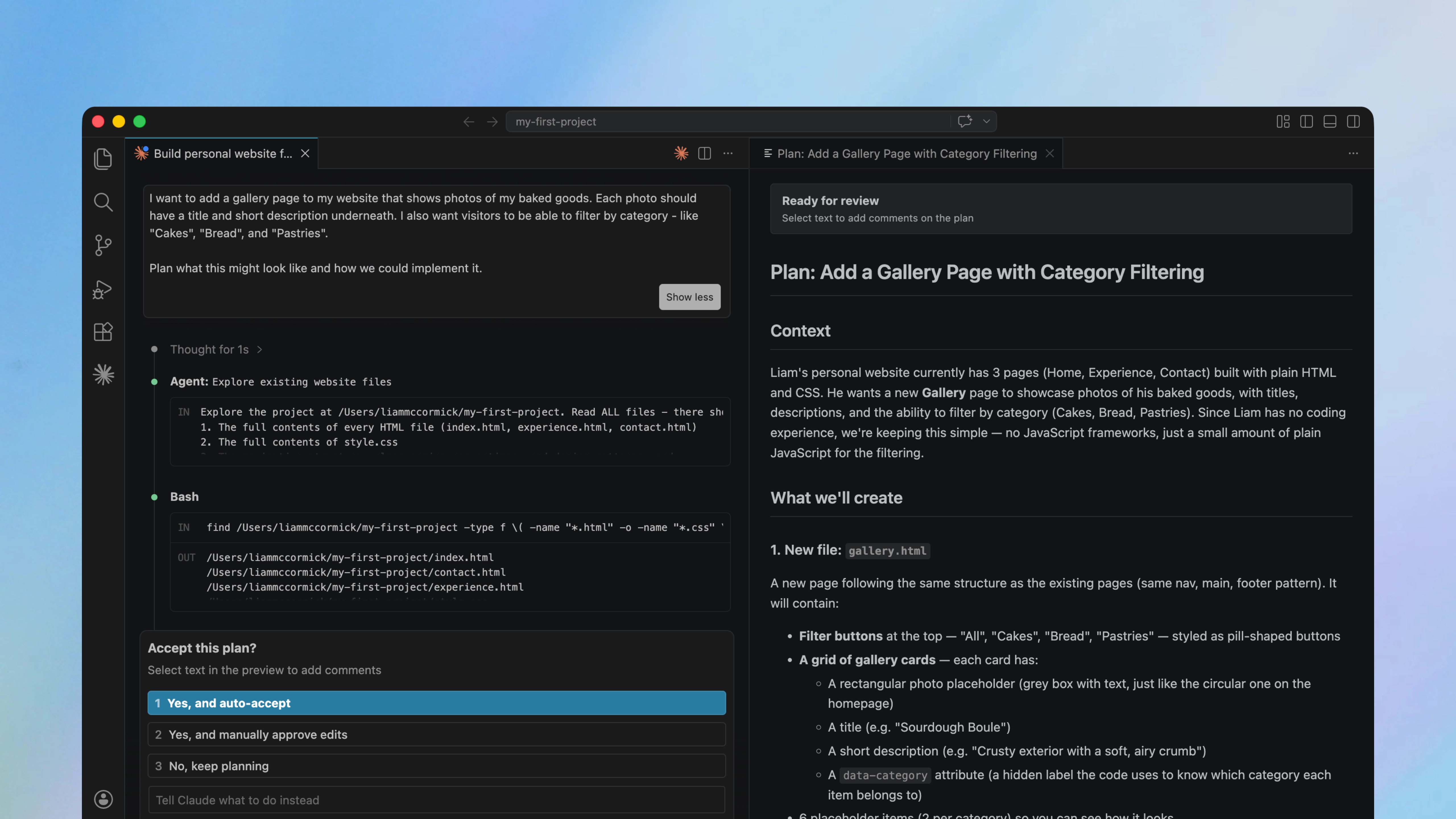
Even with plan mode, you'll sometimes want to pause and check in on what Claude has actually done. You can ask Claude to explain what it's built at any point during your conversation:
Before you make any more changes, can you explain what you've built so far? I'd like to understand the overall structure and why you've chosen this approach. Explain it as if I have no technical background.
Claude will then give you a summary of the files it's created, what each one does, and why it made certain decisions. If something doesn't sound right, you can always ask a follow-up question or tell Claude to take a different approach.
If Claude mentions something that you don't understand - whether it's a technical term, a library it wants to use, or a decision about how to structure the project - feel free to ask about it. There's no reason to just nod along and hope it works out.
You mentioned that you're going to use "React" for this. Can you explain what that is, why you're recommending it, and whether there's a simpler option? I have no coding experience and I want to keep things as simple as possible.
In most cases, Claude will clearly explain the idea and it might even suggest a simpler alternative. This back-and-forth is how you'll gradually build your understanding of what's happening with the code - and it will make you better at describing what you want in future conversations.
It's inevitable that things will go wrong at some point. This is completely normal and to be expected - even experienced developers run into issues and have to debug them. So don't take it as a sign that you're doing something wrong.
The most common issue you'll face is that Claude will build something that doesn't look or behave the way you expected. When this happens, the best approach is to describe what you're seeing and how it differs from what you wanted.
You'll notice that some of these techniques - like describing things visually and using screenshots - are the same ones from earlier in this guide. That's because the skills that help you get great results in the first place are also the ones that help you fix problems when they come up.
You don't need to diagnose the technical cause. Just describe what you're seeing on screen and what you expected to see instead.
The navigation menu is showing at the bottom of the page instead of the top. It should be a horizontal bar that sits at the top of the page and stays visible when I scroll down. Also, the text on the homepage is really small on my phone - it needs to be larger.
This is your best friend when things go wrong. Take a screenshot of what you're seeing and paste it directly into Claude Code. This gives Claude the same view that you have and removes any ambiguity about what the problem is.
Make sure that you also include a description of the problem and be specific about what the issue is - a screenshot on its own isn't always enough.
One mistake I kept making early on was correcting Claude over and over when it got something wrong. After lots of corrections, the conversation becomes full of bad approaches and Claude becomes even more confused.
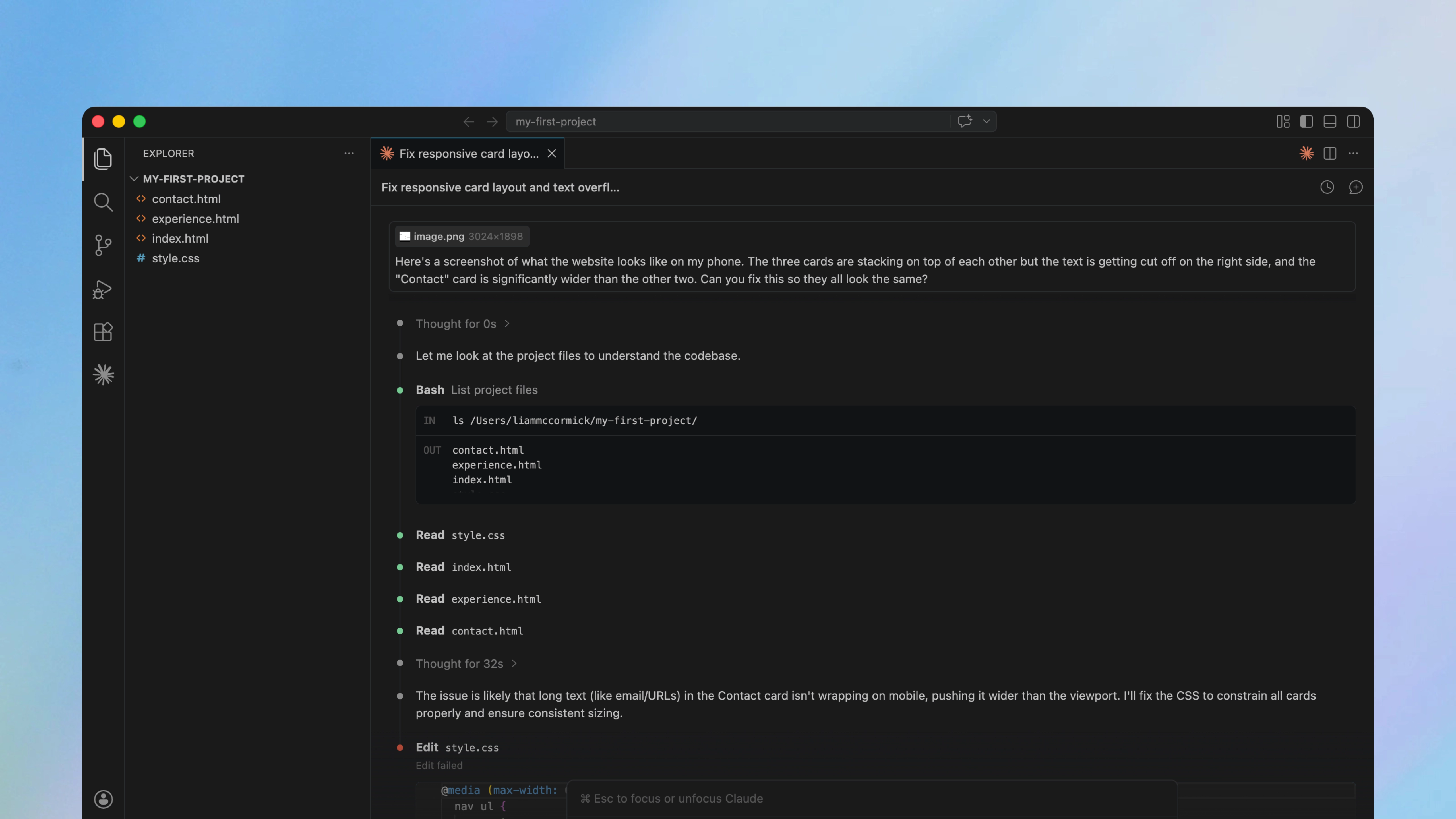
If you've tried to fix something 4-5 times and it's still not right, it's almost always faster to type /clear and start a fresh conversation with a better description. This resets the conversation, so Claude starts with a clean slate and isn't weighed down by all the failed attempts.
But make sure to include what you learnt from the failed attempts - "last time you tried X and it didn't work because Y" - so that Claude doesn't make the same mistakes again.
This also applies when you're switching between tasks. If you've finished building one feature and you're moving on to something else, clear the conversation first. A long conversation full of irrelevant context will slow Claude down and lead to more mistakes.
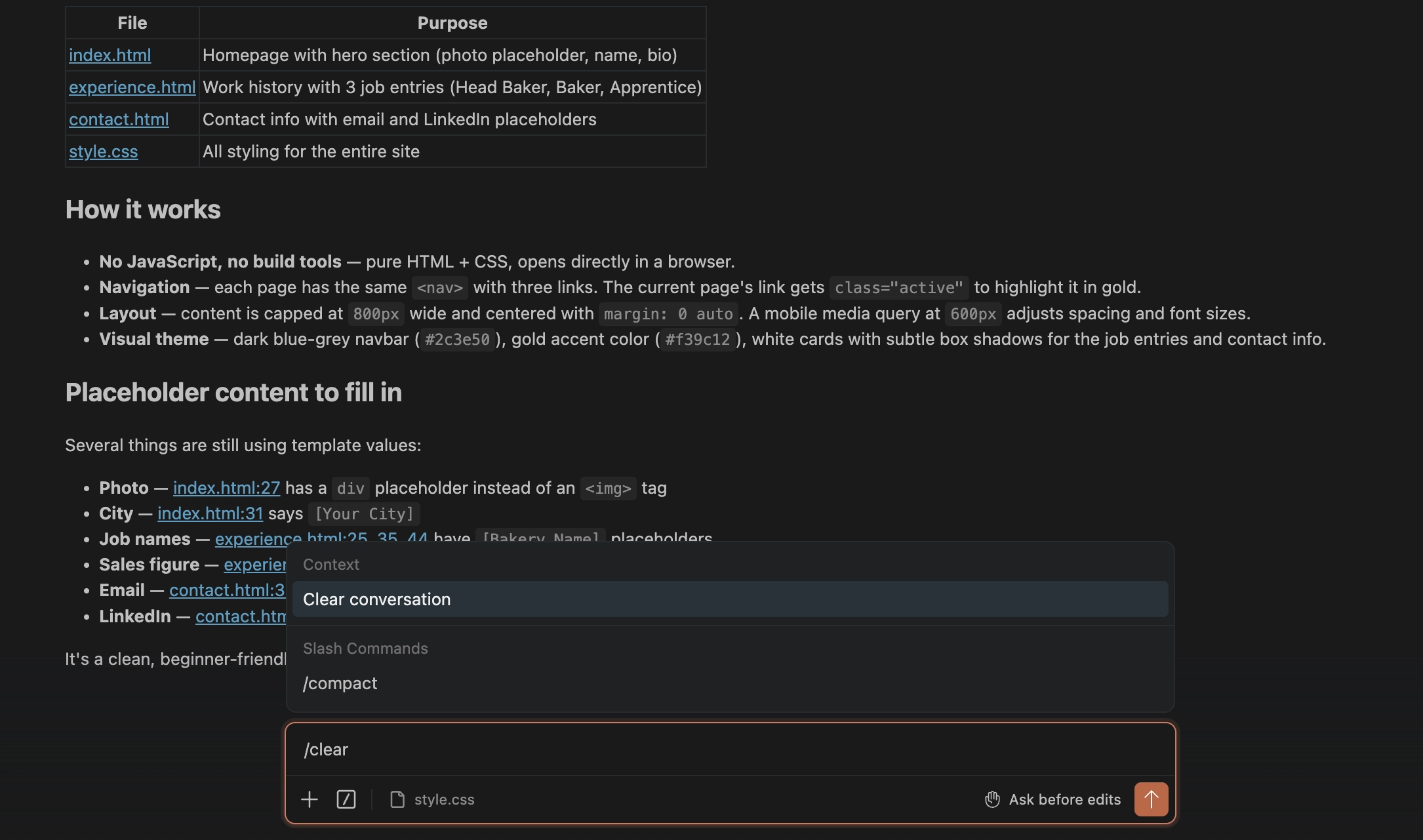
Before you start any project, ask Claude to set up version control using Git. Think of it as a save point in a video game - if Claude breaks something or takes the project in a completely wrong direction, you can roll back to the last version that was working.
You don't need to understand how Git works - just ask Claude to do it for you. Here's the kind of prompt I'd use at the start of any project:
Set up Git for this project. After each major change or new feature, commit the progress with a clear description of what was done. If I ask you to undo something, use Git to roll back to the last working version.
That way, if something goes wrong later, you can just say "undo the last set of changes" and Claude will take you back to a clean starting point. It's one of those things that takes ten seconds to set up and can save you hours of frustration.
There will be moments where what you're asking for is genuinely difficult, and Claude will struggle. Complex animations, visualising data in an intricate way, or anything that requires very precise control over how things look and behave - these can be frustrating for experienced developers too.
When you hit this point, you have a few options: simplify what you're asking for, try describing it differently, or accept that this particular feature might need a different approach. Sometimes, the pragmatic thing to do is move on and come back to it later.
This is the section that I want you to read carefully, because it covers the biggest risk for non-coders using Claude Code - which isn't building the wrong thing. It's not knowing what questions to ask.
Claude Code can build apps with databases, user accounts, payment processing, and then deploy them to AWS, Azure, or Vercel. It can do really impressive things and create software in seconds.
But there's a huge gap between "it works" and "it's safe" - and if you don't have a technical background, you might not even realise this gap exists. Building software involves hundreds of small decisions that experienced developers have learned to make almost without thinking - they've seen things break, they've read the horror stories, and they've picked up good practices that shape how they work.
Without that context, the gap is less about making worse decisions and more about not realising certain decisions need to be made in the first place. So here are some of the things that experienced developers know instinctively, but beginners probably don't know:
When you connect your app to a service like a payment provider, a database, or an AI model, you'll need to use a secret key.
If that key ends up in your code and you push it to a public GitHub repo, anyone can find it, use it, and potentially run up expensive bills on your account.
Claude can sometimes store your keys directly in the code without flagging it as a problem, so you need to watch for this yourself.
If your app collects any personal information like names or email addresses, there are legal requirements around how you store and process that data.
GDPR applies if you have any users in Europe, and getting this wrong can have real consequences. This isn't something that Claude will always flag unprompted, so you might need to ask.
Even a simple sign-up form can put you in scope, so it's worth checking before you launch anything publicly.
Deploying an app to AWS or Azure is really straightforward with Claude's help, but if you don't understand the pricing model you can run up a serious bill.
I've seen stories of people getting unexpected invoices because they didn't realise that a specific setting was costing them money.
Whenever Claude suggests a specific service, spend a few minutes researching the pricing model first.
Things like authentication, input validation, and HTTPS are the minimum for any app that's publicly accessible.
Claude will often implement these for you, but the implementations aren't always robust - and you might not have the knowledge to tell the difference between a solid implementation and one that has gaps.
If your app is going to be live on the internet, getting a developer to look over the security side before you launch is well worth the time.
The tricky part is that Claude can catch some of these issues - but you can't rely on it 100%. It might flag an exposed API key in one file and miss another. Telling it to "search my code for security issues" won't always spot everything. Claude Code is an incredibly powerful tool, but it can make mistakes - subtle issues can slip past even when you've explicitly asked it to look for them, so a thumbs up from Claude doesn't always that mean your code is actually secure.
This is the huge gap between developers and those with no technical background. The experienced developers know what they should be looking for and can verify Claude's work. But beginners are relying on Claude to catch problems that it might have introduced itself.
There's a simple rule of thumb here. If your app handles other people's data, processes payments, or is publicly accessible on the internet - you should get a developer to review your code before you launch it. This isn't a failure on your part - it's just the sensible thing to do, and it's exactly what I'd recommend to anyone in this situation.
For personal projects that only you use - like a budget tracker on your own laptop, a script that renames your photos, or a website that doesn't collect any data - the risk is much lower and you don't need to worry as much.
This is useful if you're worried about Claude making changes to important files on your computer. It gives you a fully disposable environment, with extra peace of mind built in.
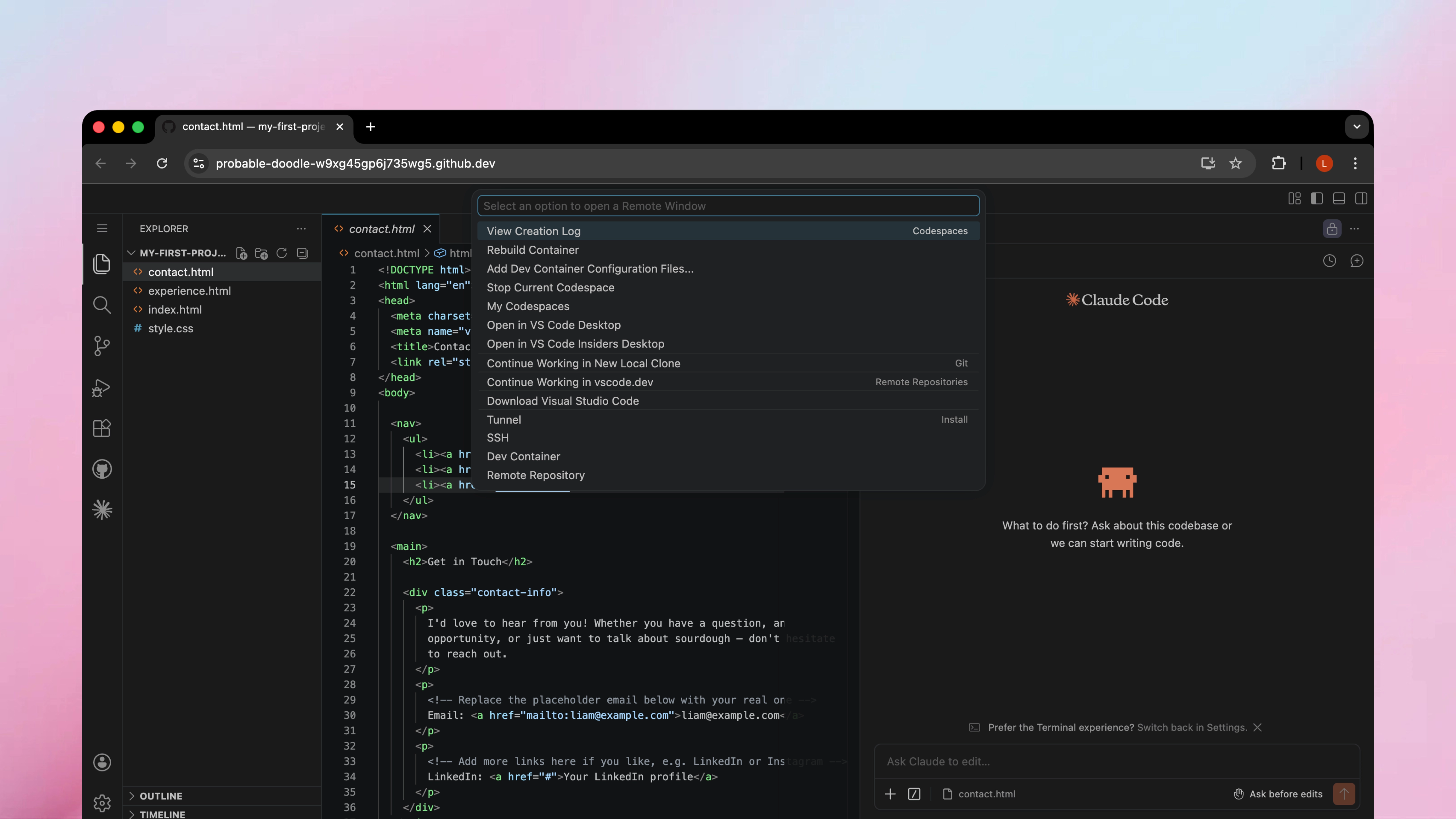
The easiest way to do this is with GitHub Codespaces. It gives you a temporary computer in the cloud and lets Claude create, edit, and delete files without touching anything on your real machine.
If something goes wrong, you can just delete the environment and start again. GitHub gives you a generous amount of free Codespaces usage each month, so you don't need to worry about unexpected bills.
To get started, you'll need to push your project to GitHub. If you haven't done this before, just ask Claude to help - it can walk you through the entire process.
Can you help me push this project to GitHub? I don't have a GitHub account yet, so walk me through the entire process step by step.
Once your project is on GitHub, click the green "Code" button on your repository page. Switch to the "Codespaces" tab and click "Create codespace on main".
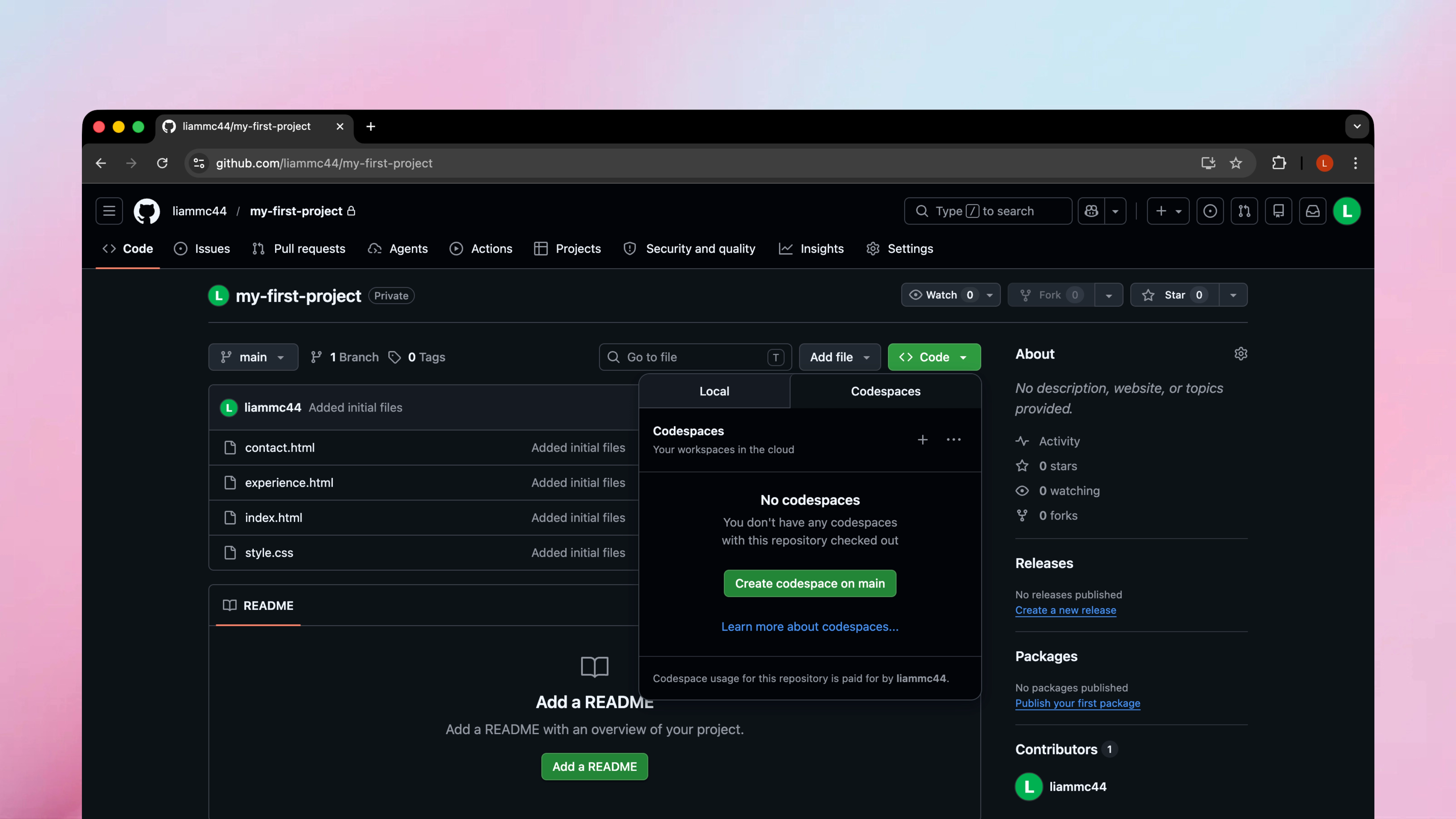
After a few seconds, you'll see a full VS Code editor running in your browser - with your project files on the left, the code in the middle, and Claude Code ready to go in the terminal at the bottom. Everything runs in the cloud, so nothing touches your actual computer.
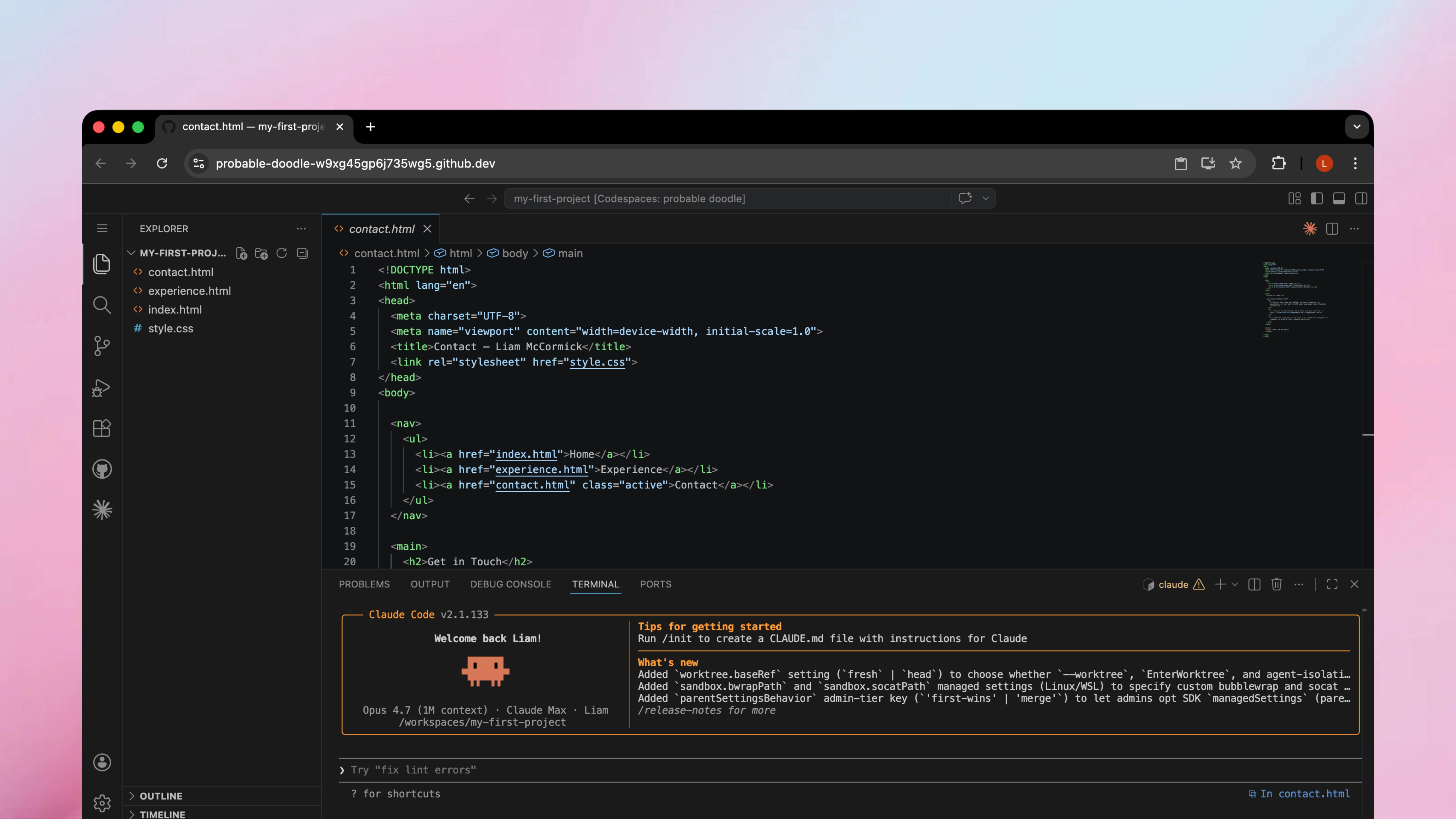
You can also enable auto mode in these environments, which lets Claude run commands without stopping to ask for your permission each time. Auto mode is Anthropic's latest way to manage permissions - instead of pausing at every action, Claude will work through the task uninterrupted and a safety classifier double checks each command in the background.
This classifier will automatically block any risky actions for you - such as deleting files outside your project, pushing directly to main, or running unfamiliar code from the internet. You'll be able to write code really quickly and have more of a hands-off approach, while still ensuring that Claude won't cause any damage.
It's a much safer alternative to the older "bypass permissions" mode, and it's the approach I'd recommend for most people - especially if you're working inside a disposable Codespace, as you can easily delete the environment and start fresh if Claude messes up.
Auto mode requires a Max, Team, Enterprise, or API plan from Anthropic - so it's not available on the Pro plan. If you have the Pro plan, you can just use the bypass permissions mode instead and follow the same steps below.
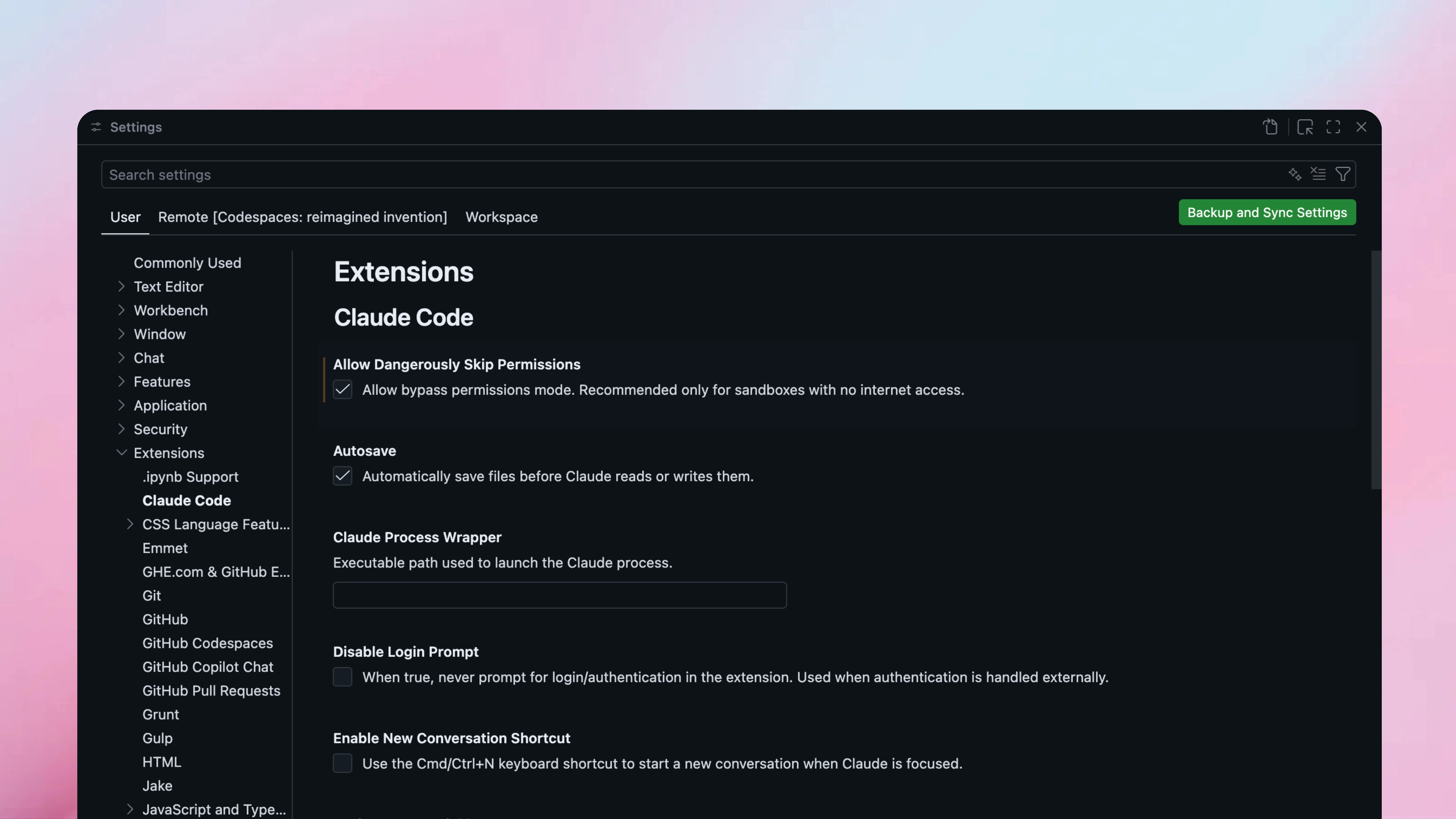
To turn it on, open VS Code's settings, navigate to Extensions, and find the Claude Code section. Tick the "Allow Dangerously Skip Permissions" checkbox - it sounds dramatic, but you're not actually skipping safety here. The toggle just makes the auto mode option appear in the mode selector.
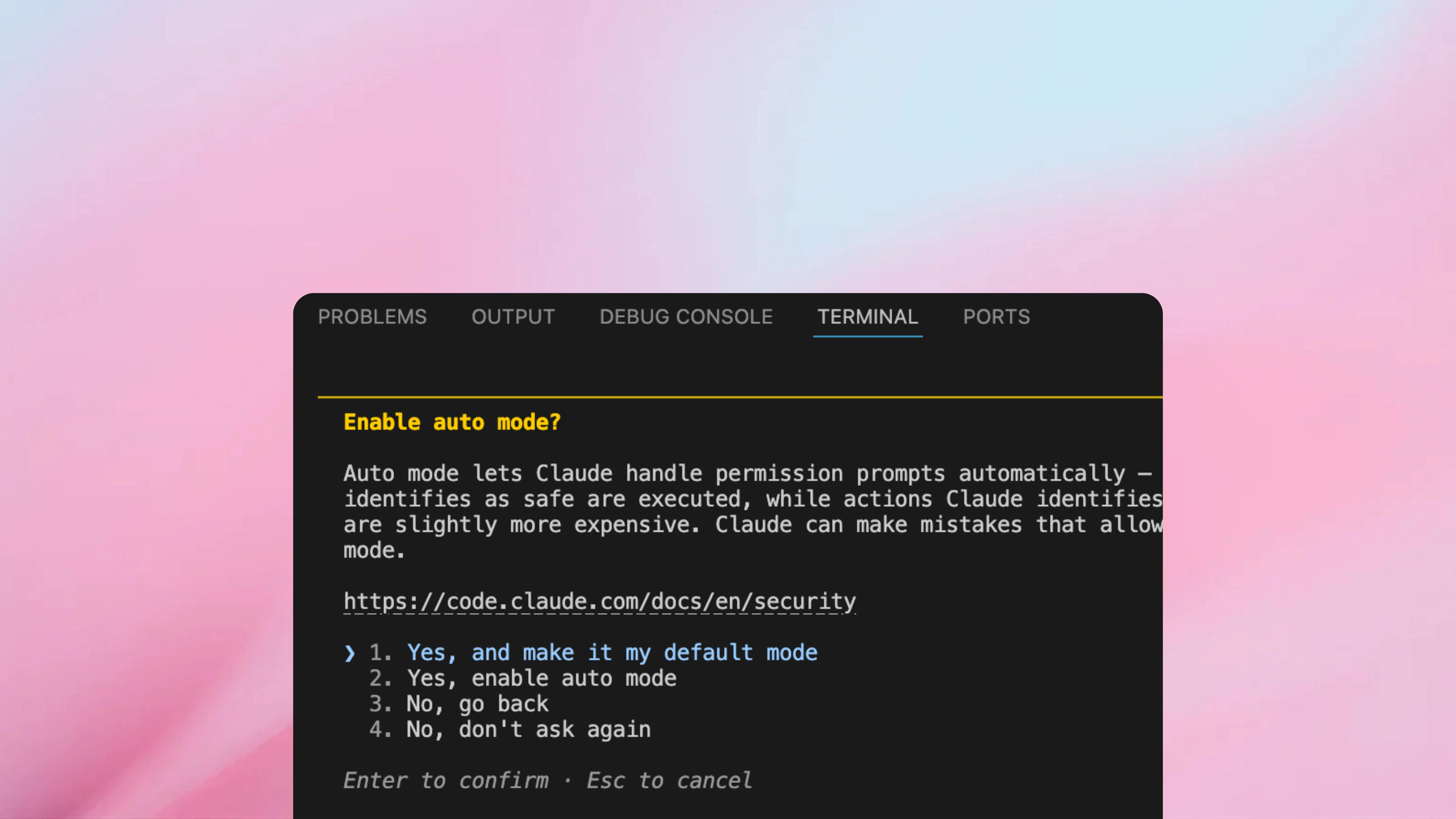
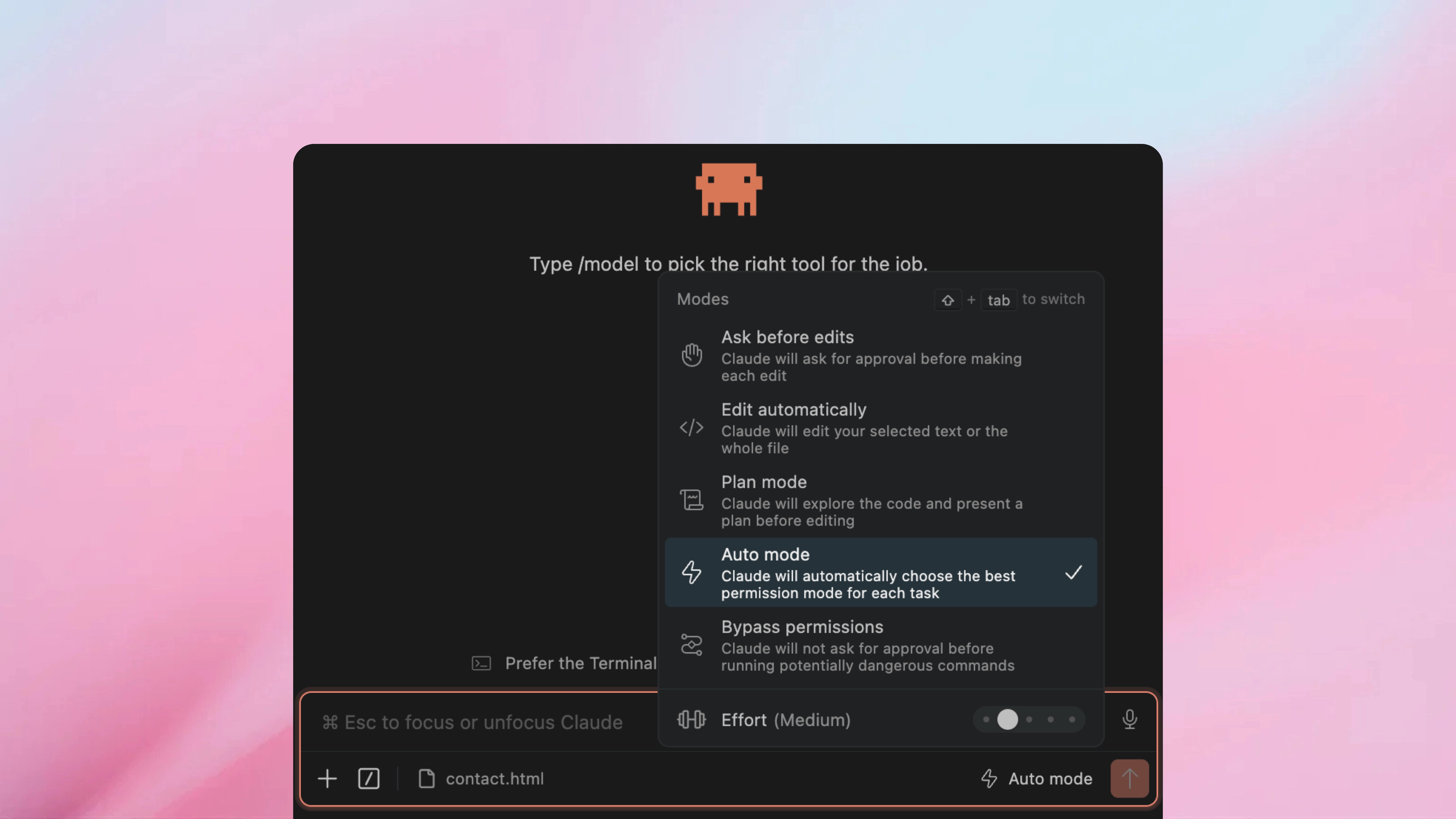
Once that's enabled, go back to the chat panel and click the mode selector at the bottom. You'll see "Auto mode" as a new option. Select it, and Claude will be able to create files, run commands, and make changes without stopping to ask - while still being held back from anything genuinely dangerous.
When you're done for the day, make sure to stop your Codespace so it doesn't eat into your free hours. Click the "Codespaces" label in the bottom-left corner of the editor and select "Stop Current Codespace" from the menu. Your files will still be there when you come back.
You don't need to become a developer to keep using Claude Code effectively. But if you want to go further, understanding a few basic concepts will make a noticeable difference to the quality of what you build.
Here are the things I'd recommend learning first:
What files and folders do. Understanding how a project is structured - where the code lives, where the styles are, where the images go - will help you give Claude better instructions. You don't need to read the code, but knowing that "the homepage is in index.html" or "the styles are in styles.css" means that you can point Claude to specific places.
What HTML, CSS, and JavaScript do. You don't need to write any of these, but understanding what each one is responsible for will help you communicate with Claude. HTML is the content and structure, CSS is the design and layout, and JavaScript is the behaviour and interactivity. When Claude asks "should I add this as a CSS animation or a JavaScript animation?", you'll have enough context to make a decision.
How to use Git and GitHub. Git is a version control system that saves snapshots of your project, so that you can go back to a previous version if something breaks. GitHub is a popular platform, which allows you to store these projects online. Naturally, Claude Code will work with both of these, and understanding the basics will help you manage your projects more confidently. If you're unsure, just ask Claude.
What deployment means. Deployment is the process of making your project available on the internet, so that other people can access it. Platforms like Vercel make this surprisingly easy, and Claude can walk you through the entire process. Understanding the basics of deployment will help you take your projects from "it only works on my computer" to "anyone can visit it."
If you've built something with Claude Code and you're hungry to learn more, I'd recommend picking up a free beginner's course on HTML and CSS. freeCodeCamp is a great place to start - it's completely free, self-paced, and walks you through the basics interactively. You don't need to master any of it - but even a surface-level understanding will improve how you communicate with Claude and allow you to spot issues more quickly.
And if you're an experienced developer looking for more advanced strategies, I've written a separate guide that covers the techniques I use daily in my professional work - including MCP servers, custom slash commands, context window management, and more.
This guide covered a lot of ground - from understanding what Claude Code is and getting it installed, through writing your first prompts, debugging when things go wrong, and the risks that aren't always obvious when you're starting out. The most important thing now is to keep using it - these habits get easier the more you practice them, and the more you build, the better you'll get at describing what you want. Below is a quick summary of the key lessons to keep handy as you go.
Claude Code writes the code for you. Your job is to describe what you want clearly and review the results. The better you are at describing what you want, the better the results will be.
Vague prompts lead to vague results. Describe what you want to see on the screen, focus on the end result rather than how Claude should build it, compare to things you've seen before, include screenshots when you can, and say what you don't want as well as what you do.
You don't need to read every line of code, but you should understand why Claude chose a particular approach. Use plan mode for anything complex, ask Claude to explain its decisions in plain English, and remember there are no dumb questions if something doesn't make sense.
Don't try to build everything at once. Get the simplest version working first, then add features one at a time. This is less overwhelming and means you always have something that works.
When something goes wrong, a screenshot is worth a thousand words. Paste it directly into Claude Code and outline what you expected to see. This is always faster than trying to describe the problem in a lot of detail.
Claude Code is powerful, but it's not a replacement for understanding what you're building. If your app handles other people's data, processes payments, or is publicly accessible - you need to get a developer to review it before you launch.
A year ago, building software without coding was barely possible. Now, you can build genuinely useful things with nothing but a clear description and a bit of patience. These tools will only get better over time, and the people who start learning now will have a real advantage over everyone else.
When you write a prompt that consistently gives you great results, save it somewhere - over time you'll build up a library of go-to prompts that you can paste into future projects, which compounds in value as you go.
Claude Code has genuinely lowered the barrier to building software. You don't need to have a computer science degree, years of experience, or be able to write a single line of code - you just need a clear idea of what you want and describe how it should look.
But it's important to be honest about the limitations. Claude Code is a powerful tool, not a magic wand. It will make mistakes, it won't always catch security issues, and there are things that still require a developer's expertise to get right. The key is knowing where that line is and being comfortable with asking for help when you need it.
If you found this guide useful, you'll enjoy my weekly newsletter - every week I analyse the latest AI advances and how you can use them. It's free and you can unsubscribe at any time.
Read by executives at:
Practical guide for getting the most out of Claude Code — from writing clear prompts to using plan mode, MCP servers, and CLAUDE.md.
Practical ways that you can use AI. At work, at home, and everywhere in between.

A comprehensive guide to building and deploying your first AI agent.