 Loop
Loop Get free newsletter
How to create a short film
with AI
The workflow I used to create an animated short in three days,
with zero filmmaking experience

In just three days, I was able to create a short animated film - despite having no prior experience with filmmaking. In this guide, I'll cover how exactly I did this and how you can do the same.
I wanted to push the technology to its limits and figure out what it can and, importantly, cannot do.
As a result, generative AI was used for every part of the creative process - including brainstorming, writing the script, creating the character's appearance, and producing the video clips themselves.
The short film
Before we delve into how I created this animated movie, let's watch it.
What AI tools were used?
To create this short movie, I only used a handful of tools:
- Claude - AI model that helped with brainstorming, developing characters, writing prompts
- Google Flow - AI tool for generating videos
- ElevenLabs - Creates audio clips with AI
- Epidemic Sound - Library for sound effects and music
- iMovie - Simple video editor
It's worth stressing that I'm a complete amateur and don't have experience with professional editing tools, so I was keen to keep this simple.
Brainstorming ideas
At the BelTech EDU conference, I planned to talk about how AI tools are changing the world around us and reducing barriers for people. Specifically, I wanted to focus on the creative arts and how it can be used to create short stories.
Google's team had recently created a funny advert for their AI filmmaking tool, which featured a turkey quickly booking a sunny holiday and avoiding the Thanksgiving weekend. Since BelTech is scheduled close to Easter, I wanted to feature the Easter bunny.
But I didn't have a lot of ideas, so I asked Claude to help me brainstorm and plan the overall story arc.
I'm creating a short animated film and plan to use Google's AI video generator. The film will be shown at a tech conference near Easter, so I'd like to feature the Easter bunny as the main character. I want the story to be funny and unexpected - similar to Google's Thanksgiving turkey ad where the turkey books a holiday and avoids being eaten. Can you help me brainstorm some ideas for the story? I'm looking for: - A surprising or ironic premise - A clear story arc with a beginning, middle, and end - Something that can be told in 2-3 minutes - Scenes that could be visually interesting
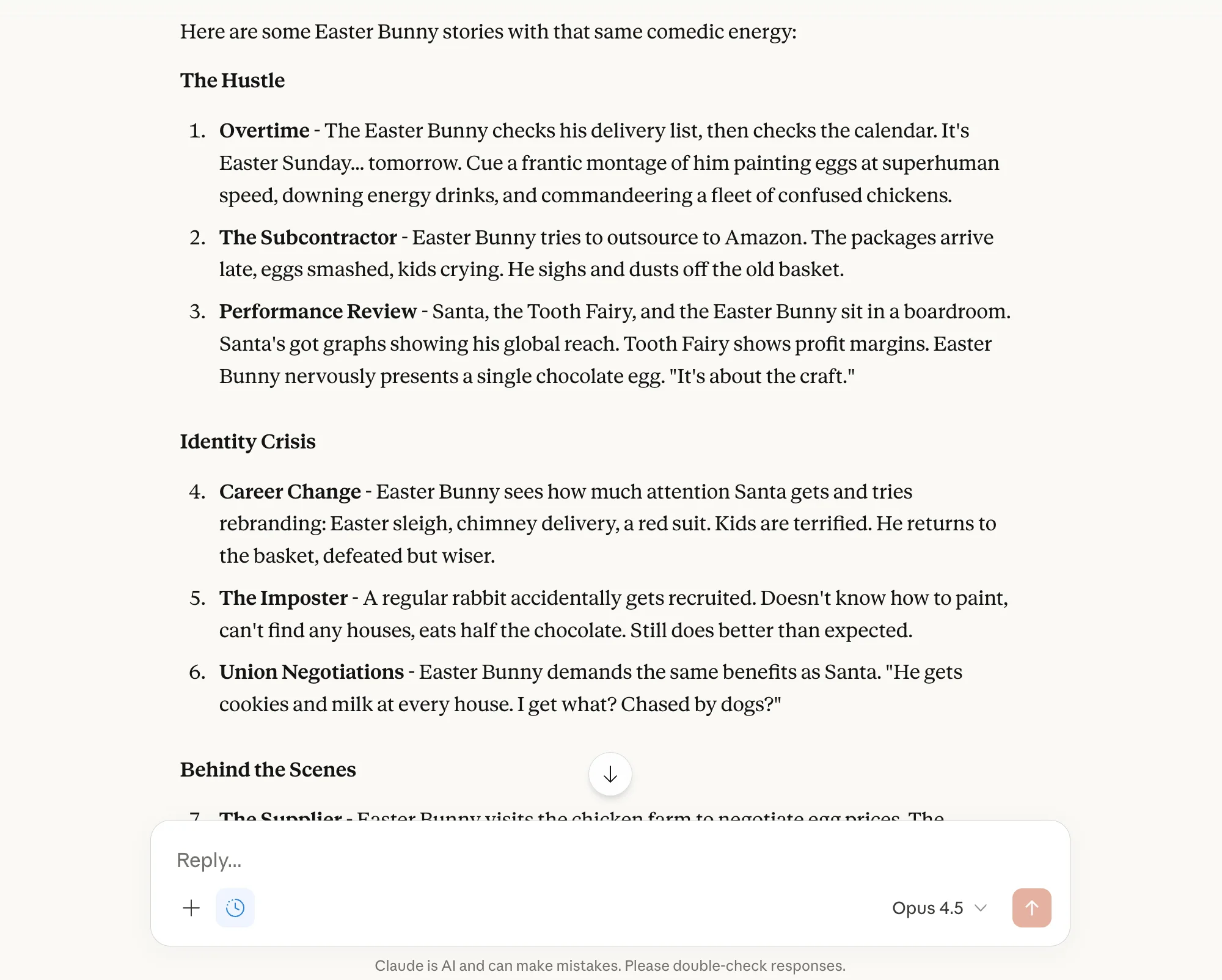
The career change idea was interesting, so I asked Claude to explore the idea further and suggest what the story could look like. After a bit of back-and-forth, I eventually settled on an idea - with the Easter bunny becoming jealous of Santa Claus, informing police that Santa is holding the elves hostage, and then travelling around the world to save Christmas. With the final scene, Santa Claus becomes enraged in his jail cell and calls the Tooth Fairy - before we cut to a black screen.
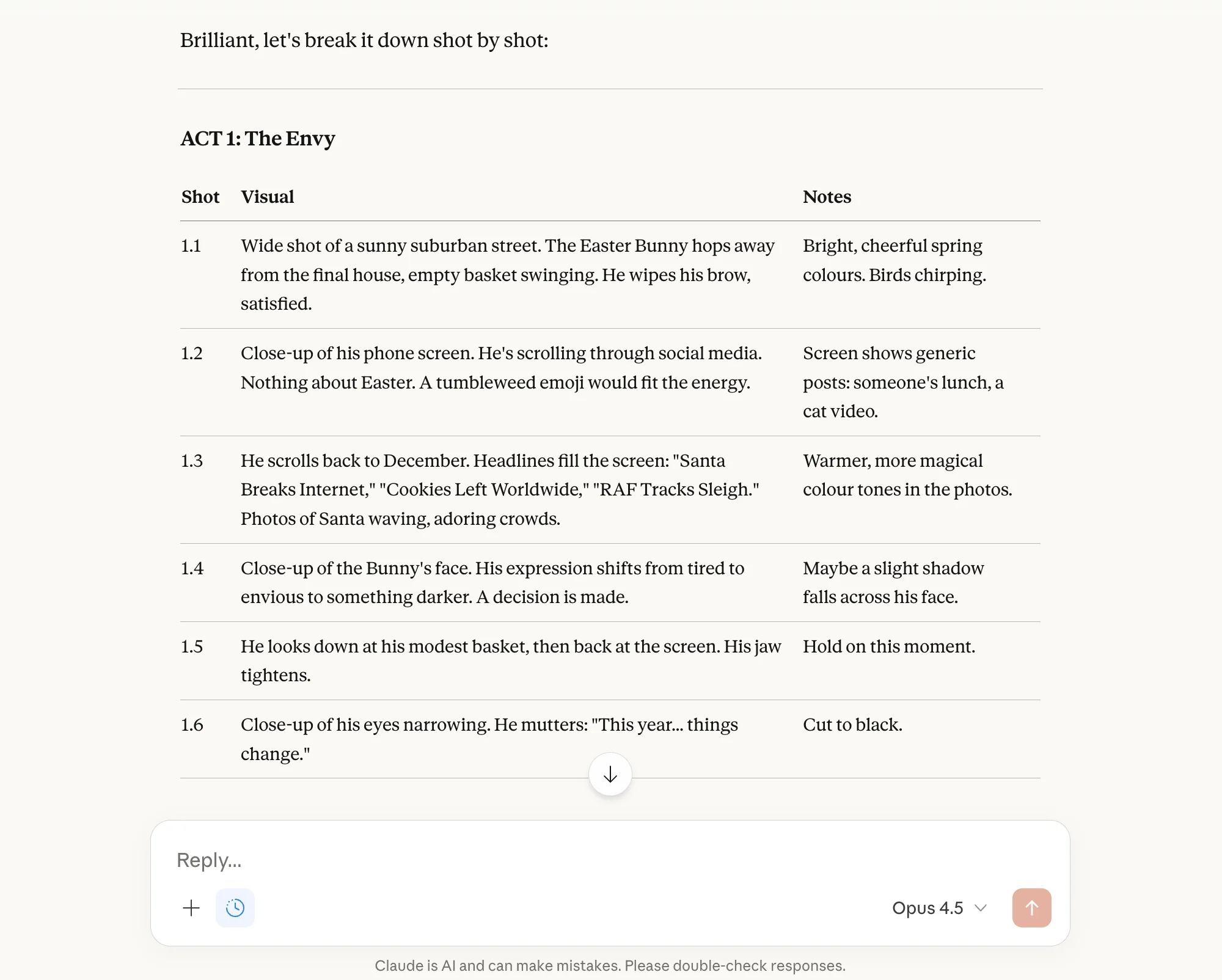
I then asked Claude to help me visualise these scenes and the different camera shots I could use.
Break down each scene into specific camera shots. For each shot, describe the framing, character actions, and any important visual details.
Developing the characters
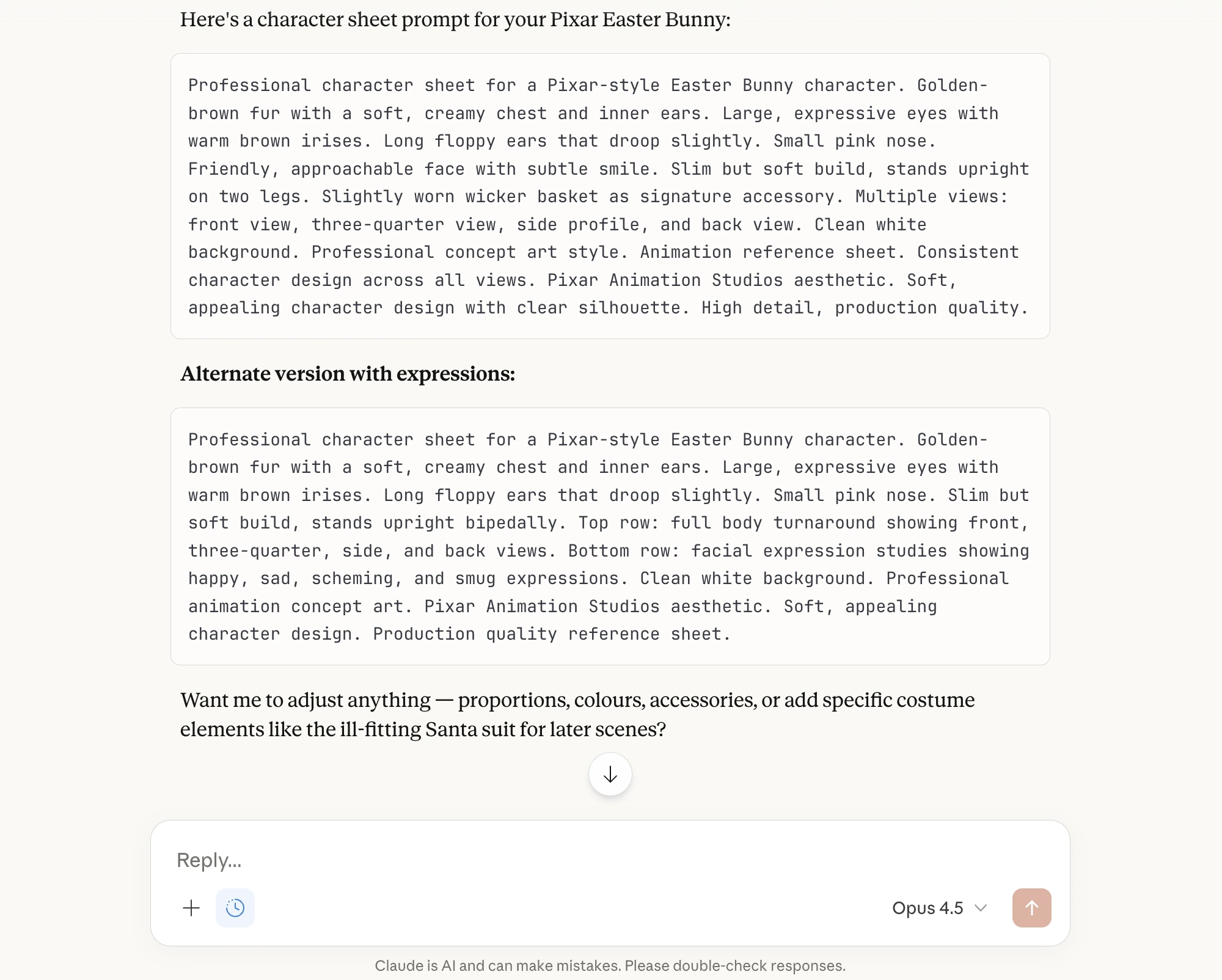
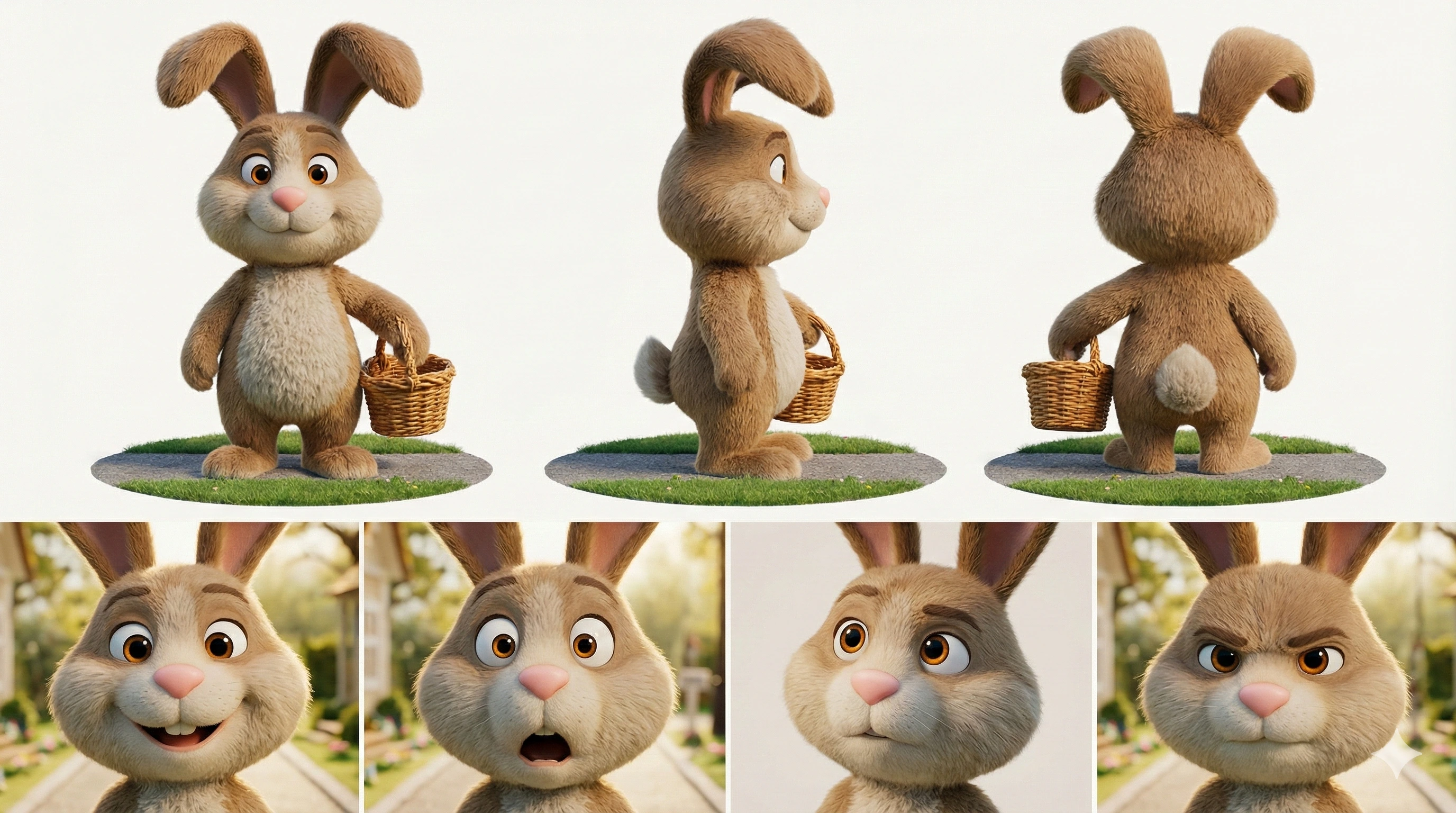
Now we need to create a character sheet. This is an important step, as it allows the video generator to "understand" what the character should look like and will lead to more consistent results.
If you don't do this, the AI video generator will make a lot more mistakes and you'll waste money.
Create a detailed prompt for Google's AI image generator. We need to create a character sheet for the Easter Bunny. Make sure that you include: - Multiple angles of the character - front, side, and rear - Any accessories - A range of expressions they might use - Use a consistent art style (3D animated, similar to Pixar's work) Format it as a single prompt, so that I can easily copy the prompt and paste it into the image generator.
I then opened Google's Gemini chatbot, selected the "Create image" tool, and simply pasted the prompt. These are character images that Google created for the Easter Bunny and Santa Claus:
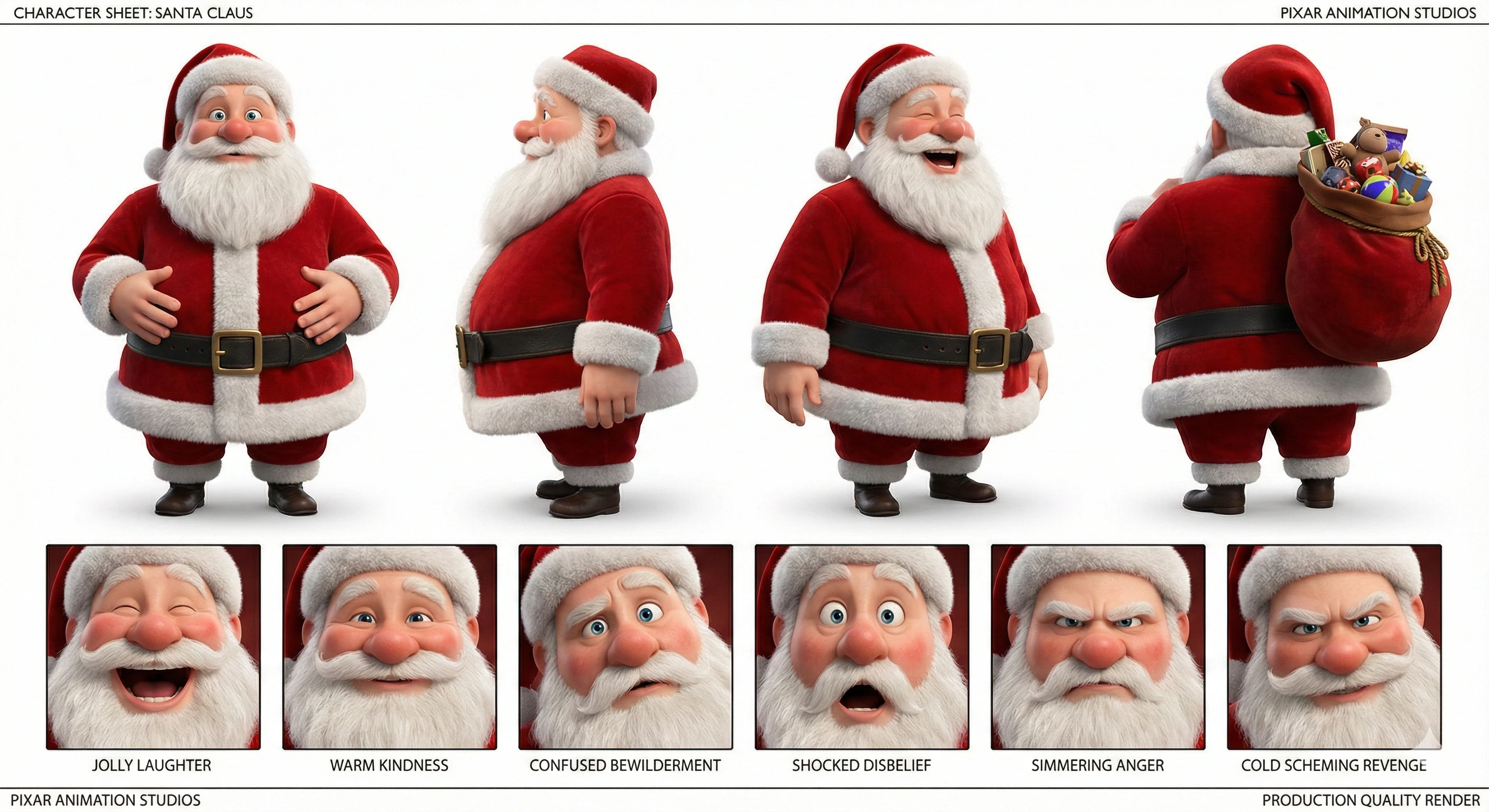
Looks good to me. Now we're ready to generate the video clips and see these ideas come to life!

Loop Newsletter
Get weekly AI insights delivered to your inbox
Subscribe for freeRead by executives at:

Generating the first scene
To do this, open Google Flow, paste the first video prompt from Claude, then attach the Easter Bunny's character sheet. This will clearly show how the bunny should look from all angles and the different facial expressions it should use.
Make sure that you're using the Google Veo 3.1-Fast model, as it allows you to make better use of your tokens - the "quality" model is 5x more expensive and it's difficult to say that the extra cost is worth it. I prefer to use the Fast model and have more clips to choose from.
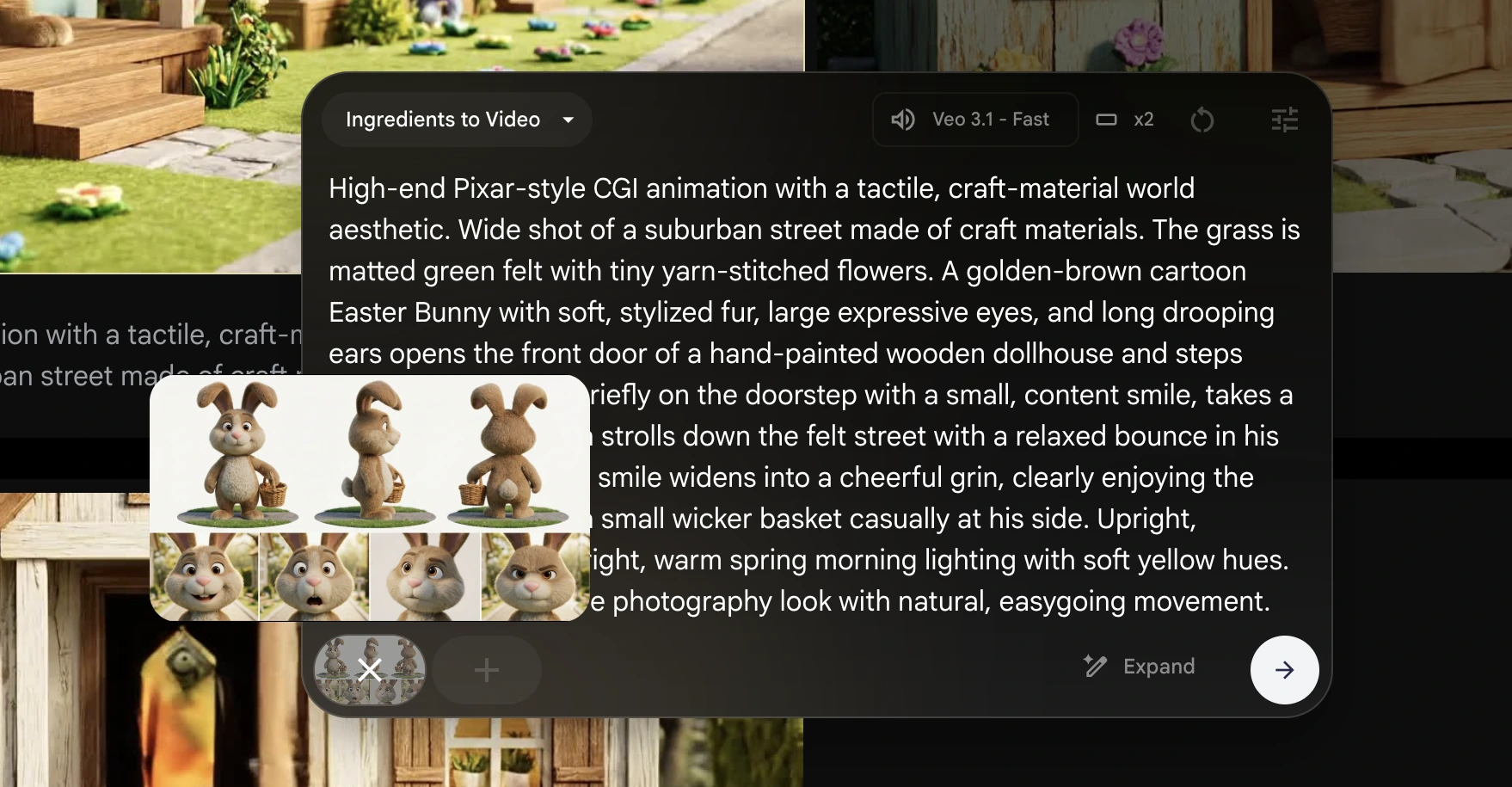
After a bit of prompting, I eventually got a clip that I liked. However, generative AI is infamous for how difficult it is to control. While one video will look perfect, it's incredibly hard to generate content that continues on from the previous clip.
Thankfully, Google has solved this problem. With their "Extend" feature, you can continue from where you left off and build on the previous clip. The results are remarkably consistent and allow you to create longer scenes.
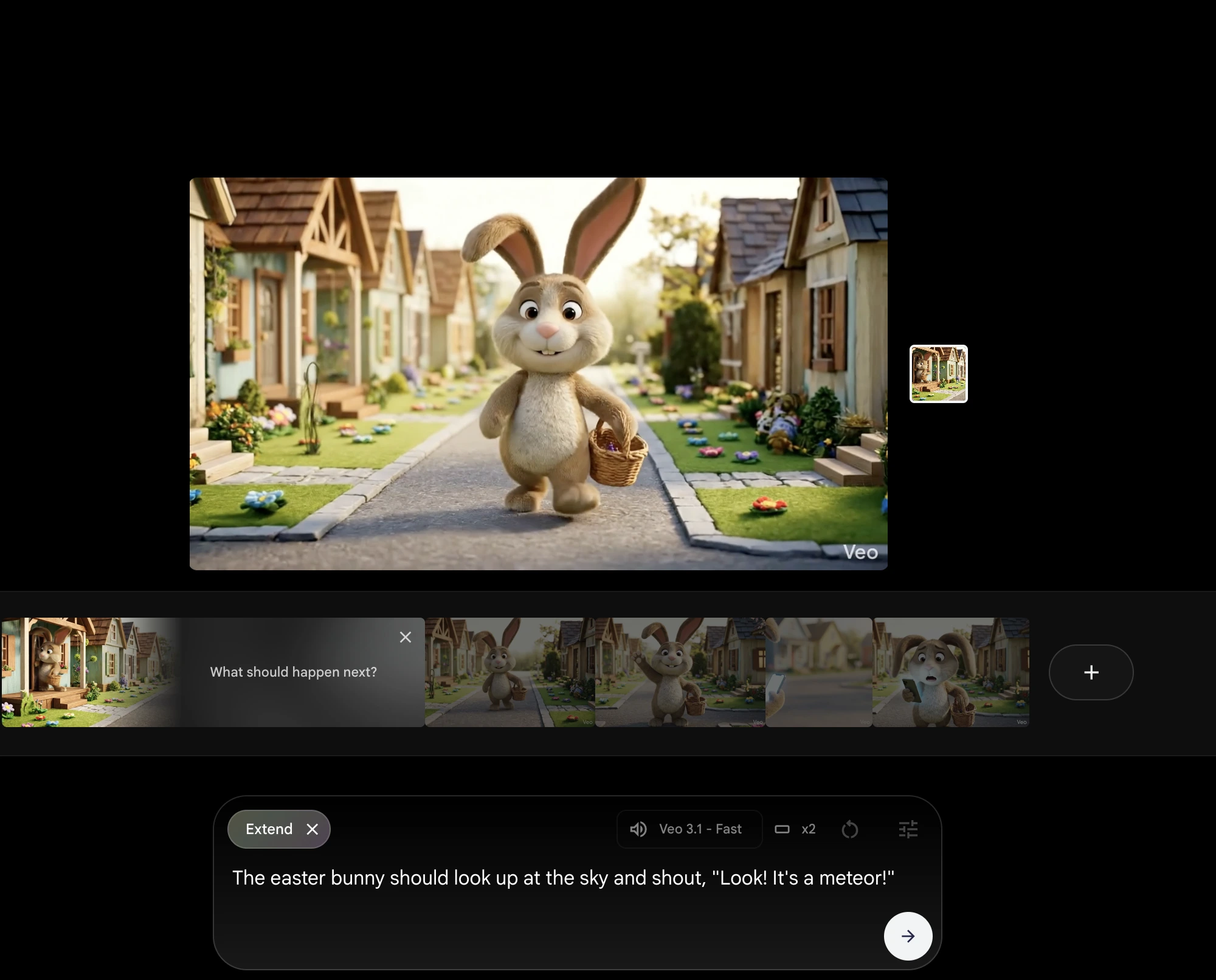
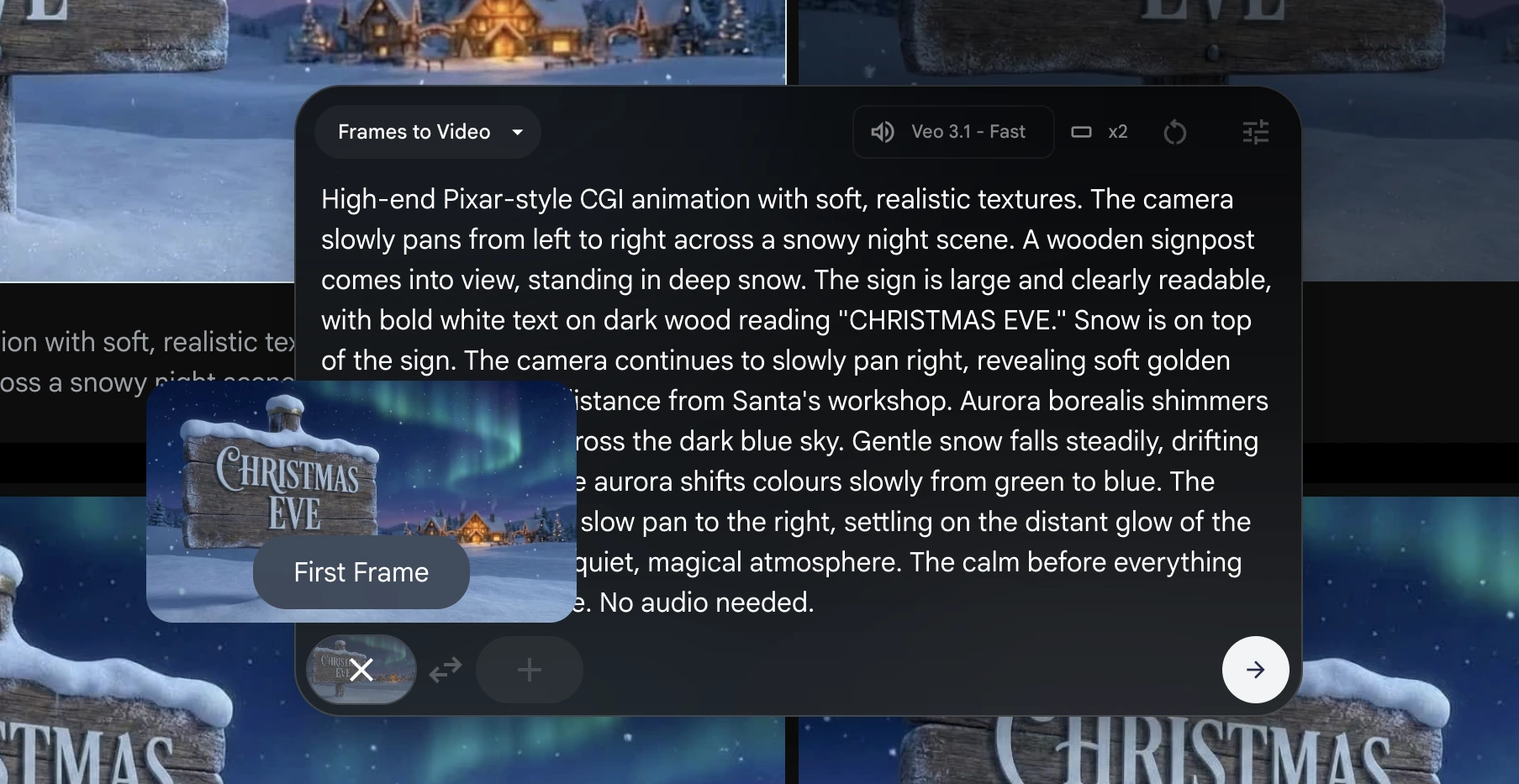
You can also tell Google what the first and last frame should be. Again, this leads to more consistent results and forces the video generator to use your images.
To make the most out of this feature, you should:
- Generate two sets of prompts - ask Claude for image and video generator prompts
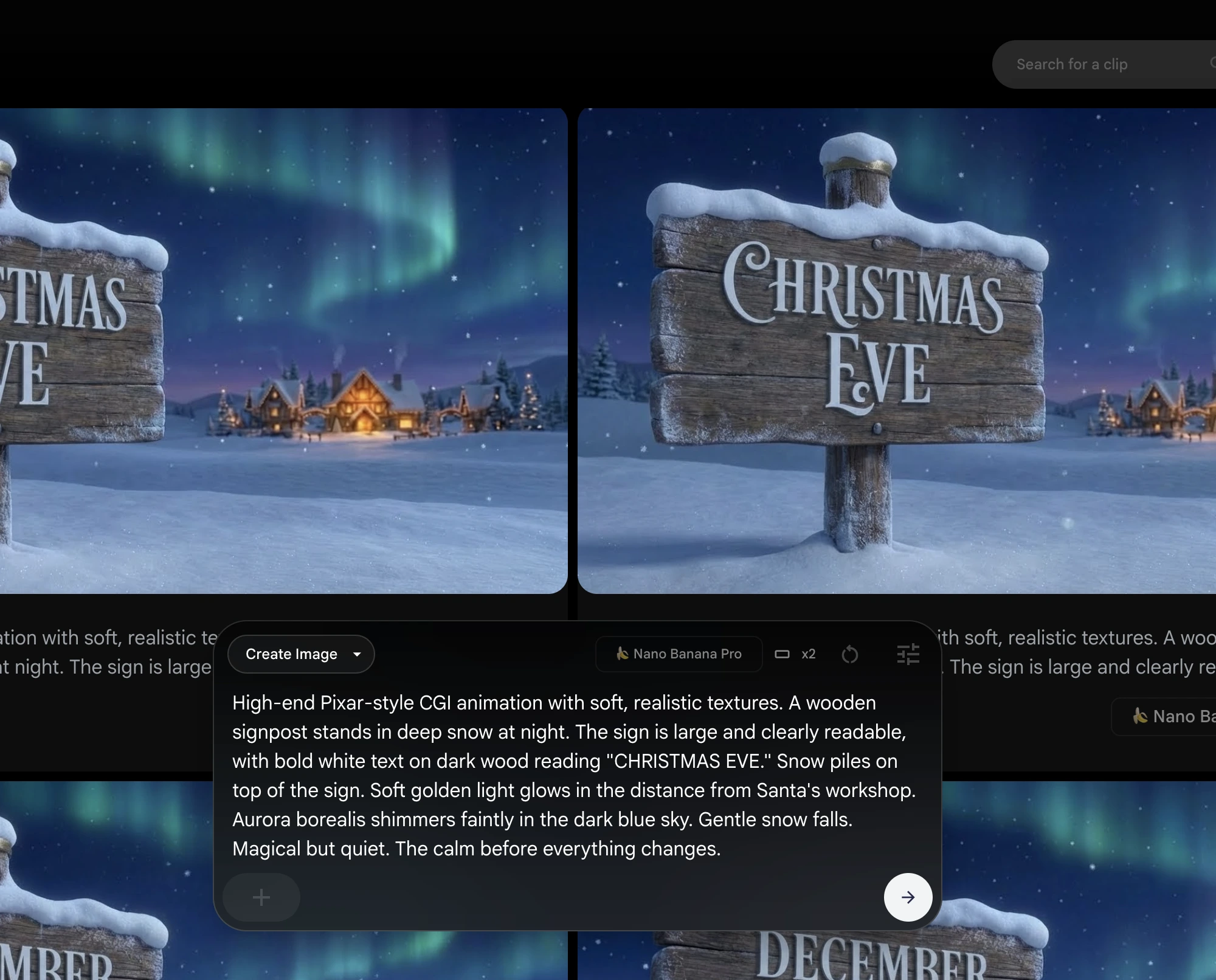
- Visualise the scene - create an image within Flow and paste the image prompt
- Create the video clip - attach the best image as an "ingredient" or the first frame, then paste your video prompt
This will lead to video clips that are much higher quality, as you're reducing the "cognitive load" on the video generator and encouraging it to follow your examples.
I found that it led to fewer tokens being wasted, which saved me a lot of money, and the AI model was able to generate exactly what I wanted.
Adding sound effects
Once you've generated all the clips you need, you're now ready to edit them and put everything together. I simply downloaded the video files from Google Flow and then added them into iMovie.
While Veo 3.1 can include sound effects in your videos, they can occasionally sound a bit out-of-place. When this happens, I recommend that you remove the audio from that clip and add your own sound effects.
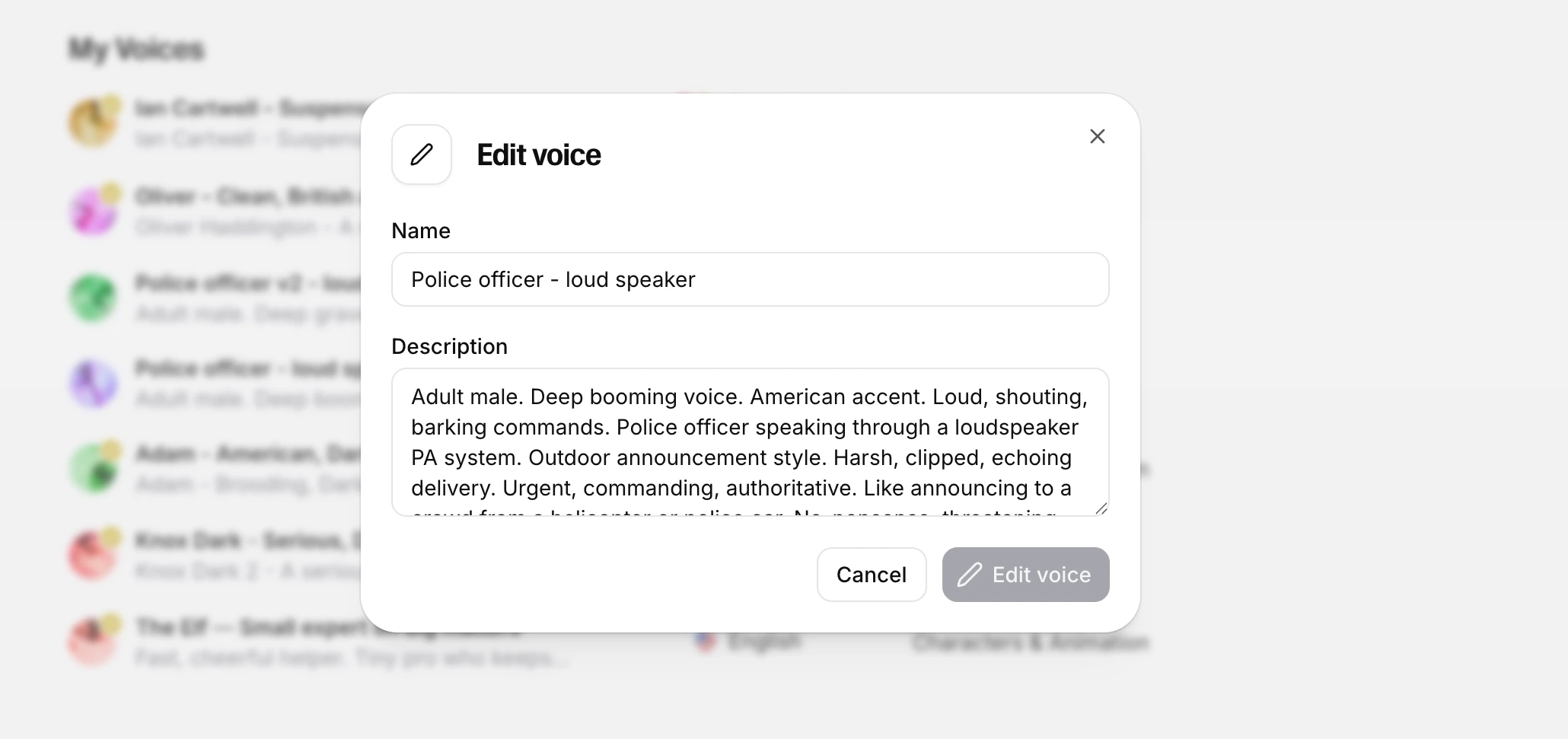
I used Epidemic Sound to create the dialog for my short film - the narrator, police officer, and bunny voices were created entirely with AI.
Create a voice character prompt for an AI voice generator. The character is an American police officer shouting commands through a loudspeaker/PA system, like announcing from a helicopter or police car. Should sound urgent, authoritative, and threatening.
Once again, Claude helped me to create the type of diaglog that I wanted. It was able to create the initial prompts for my voice characters, which I then refined to improve the results further.
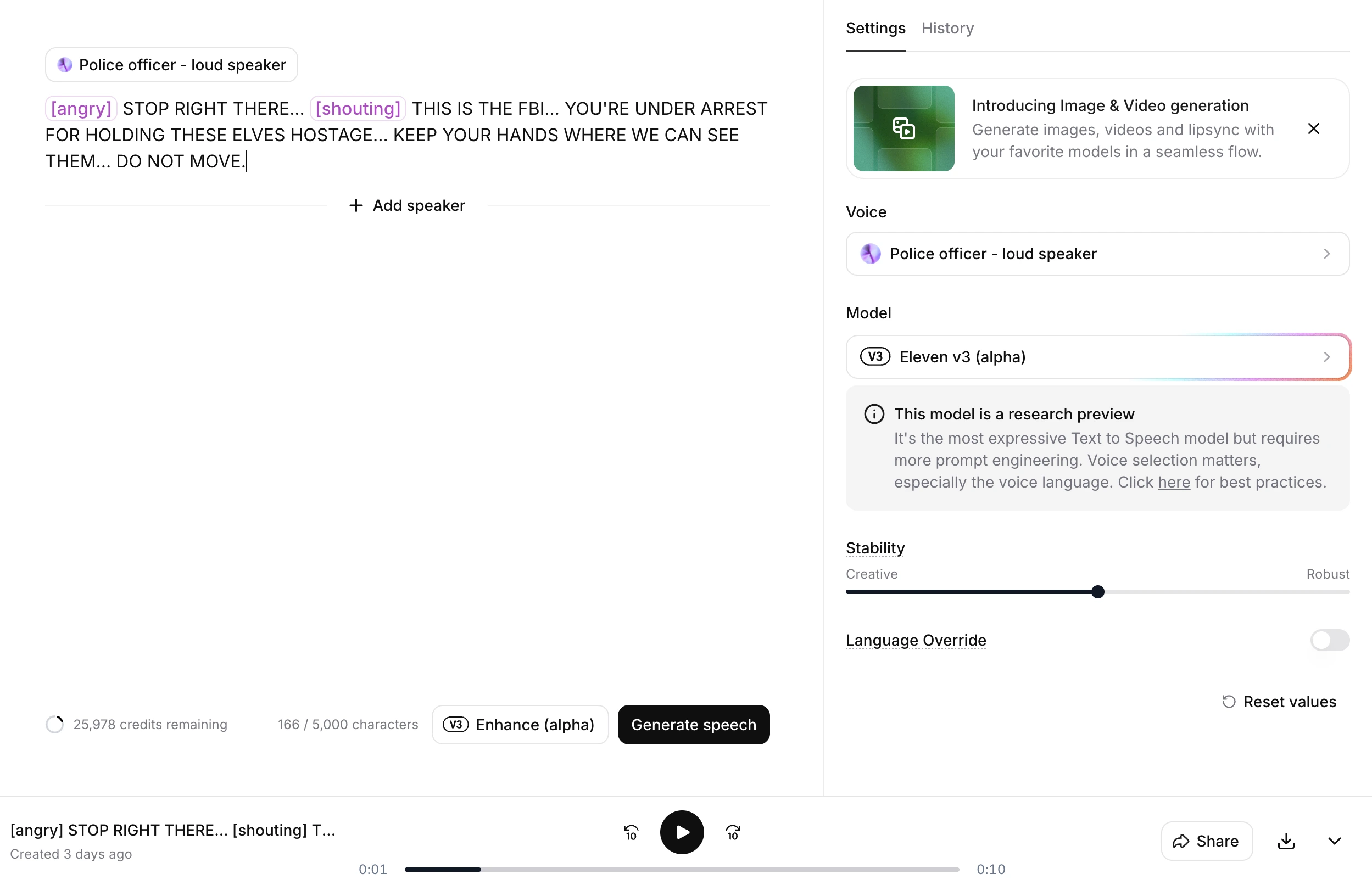
Sometimes, Google Flow will add music over the top of your clips. This can be difficult to work with, as it's hard to isolate and remove. Plus, the music can differ significantly between clips and there won't be a consistent theme linking them.
In this case, you'll need to use your own music and add it over the video.
I really struggled to create my own music clips, as most would sound a bit strange or weren't what I had in mind. No amount of prompting or refinement seemed to help, but I'm a complete novice when it comes to creating music - so this is likely the reason behind it.
I then used Epidemic Sound's library, which was surprisingly good and had exactly what I wanted.
Key takeaways
I've learnt a lot about what technology can do, alongside the areas where it falls down. Overall, I'm much more optimistic about the technology and how it can be used by amateur filmmakers.
1. Professional filmmakers are not in immediate danger
Most people want to watch interesting stories and share them with family, they don't want to become filmmakers. It's a mistake that highly technical people (including myself) can sometimes make. While some people will use it for their own creative work, the average person just wants to watch something that's entertaining and is well-made.
Instead, I think that the technology will raise the floor and allow amateurs to achieve significantly more. It can't replace professional work, but there will be more content that's created by people outside of the entertainment industry.
Of course, there will be pressure from Hollywood studios, who will race to adopt the technology in the coming years and automate more of the filmmaking process. We'll have to see how that turns out in the longer term, but I think it's foolish to think that AI can replace these jobs in the next 5 years. The technology's incredibly impressive, but the inconsistencies are holding it back from full roll-out.
As we start to see more AI-generated content emerge and flood social media, I firmly believe that people will place a higher premium on human work. Following the 2020 Covid pandemic, there's been an explosion in live-experiences (live events, meetups, in-person podcast recordings) and I think this human connection is something that people underestimate.
2. Google Flow is the real deal
I wasn't sure what to expect with Google Flow. I assumed it would be hard to create scenes that work together, as AI video generators are infamous for being hard to control and get repeatable results. But Google has been able to solve this issue.
The company has hit it out of the park here - they've got the best AI editing tool, which has been paired with the best image and video generators. Plus, the extend and frame-to-frame features are a joy to use and really simply the filmmaking process, allowing us to build on the previous scene and continue the story.
I did notice that the extend feature can cause issues, especially when you've cropped a clip and then ask the video generator to extend it. Occasionally, it will re-add the frame that you removed - making it difficult to seamlessly join the two clips.
I also wish that we could set how long the clip should last, as the default is 8 seconds for every clip, and for there to be an easier way to add / remove music from the generated clips. Even still, the AI sound effects are surprisingly good and I've found them to be pretty spot on. The character voices could do a bit of work though, as they were a bit weak for my liking.
Regardless, Google has done a great job here and they've clearly got the best tool for AI filmmaking - allowing us to do more than simply type prompts and hope that we get a decent result, which is a common compliant with tools released by their competitors.
3. Generate an image, before you generate the video
To get great results, you should take advantage of the image generator within Google Flow. It uses the Nano Banana Pro model, which is one of the best available, and has worked incredibly well for my short film.
It's important that you do this within Flow, as it adds a specific Veo watermark to the image. If you use the Gemini chat interface, it will add the diamond logo instead as a watermark - making your clip look a bit strange.
Once you've got an image that you're happy with, add it as an ingredient and paste your prompt for generating the video clip. Or, you can specify that the image should be the first frame.
This will lead to better and more consistent results, as you're clearly showing the AI model how the clip should look. You're more likely to get the clip you want and it should save you money. At the time of writing this, it's free to use Google's image generator in Flow, so it's a no-brainer to help refine your idea and then generate the video.
And if you're creating a clip that includes characters, don't forget to include their character sheet - as it really helps to improve the results.
4. Move on if you can't perfect a clip
I've spent quite a few dollars trying to perfect a clip and get exactly what I wanted. But sometimes, you need to accept defeat and move on.
In one of my scenes, I wanted the AI model to show a child running down the corridor, opening the door, and then seeing the Easter Bunny appear with a golden glow around him.
Despite my best efforts, it was impossible to get right. The AI clip would open the wrong door handle, the bunny would randomly rush into the house, or he'd make weird movements with his mouth.
It's rare, but sometimes it happens and you need know when to cut your losses. You shouldn't expect that every clip can be generated, as the technology can struggle with complex scenes - so you might need to pivot and come up with another idea instead.
Summary
Overall, I've been really impressed by Google's tool for filmmakers - it's very easy to get setup and has some great features. By combining it with a few other tools, like ElevenLabs and Epidemic Sound, you can really elevate the results and start to create a more cohesive story.
I was able to do this within three days, thanks to Claude's help, and this guide will allow you to do the same.
If you found this useful, you'll enjoy my weekly newsletter - every week I analyse the latest AI advances and how you can use them. It's free and you can unsubscribe at any time.
Read by executives at:
You might also like
AI use cases for everyone
Practical ways that you can use AI. At work, at home, and everywhere in between.
Create your first AI agent
A comprehensive guide to building and deploying your first AI agent.
Claude Code Advanced
Practical guide for getting the most out of Claude Code — from writing clear prompts to using plan mode, MCP servers, and CLAUDE.md.